The Estimate vs Actual Cost screen gives you a monthly breakdown of estimated cost and actual cost of T&M tasks accross the project with various contractors. This view helps you track the actual expenses align with the planned Time and Material (T&M) estimates, categorized by labor, material, equipment, and subcontractors.
To view estimate vs actual cost
- Ensure that you are in the T & M 'Estimate Vs Actual' screen of the project. If not,
- Open the project management console
- Click the app launcher
 and select 'Finance'
 - Click 'T & M' on the top and click 'Estimate Vs Actual' on the left
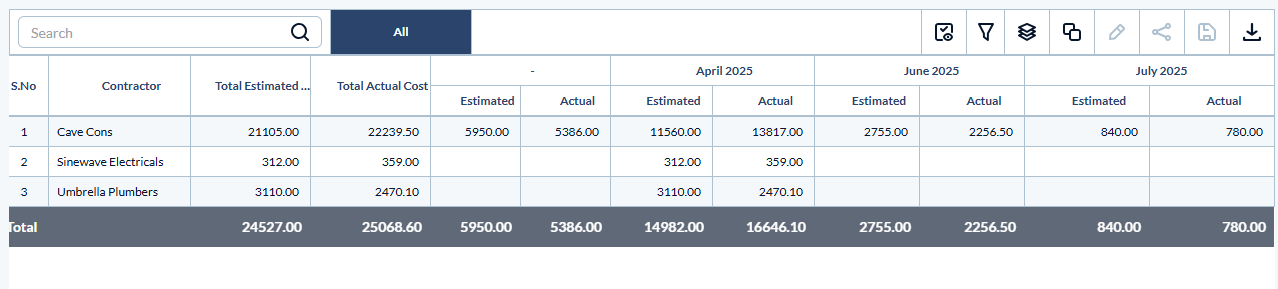
The table shows the following headers:
- Contractor - The name of the subcontractor associated with the Time and Material (T&M) work package.
- Total estimated cost - The total cost estimated for the contractor's T&M work for the project
- Total actual cost - The cost incurred so far for the contractor’s work, based on submitted and approved material, equipment, or subcontractor entries.
Monthly T&M cost
- Estimated - The planned cost for the contractor’s work during that specific month, based on the original T&M estimate.
- Actual - The actual cost recorded for that month, calculated from time card entries, material, equipment, or subcontractor entries.
Search, filter, and sorting options:
- Use the 'Search' box located at the top left to find a template using any value from the table as search criteria
- Right-click the column header and customize the display and order of the columns as you wish
- The options at the top right allow you to filter the entries, create nested groups of entries, and manage personalized and customized views of the table. Use the links below to learn more about these:
- Hover over a column header and click the
 icon to sort the rows in ascending or descending order of entries in that column
Download the File list
- Click the 'Download' button at the top-right to save a copy of the list in Excel format on your device or in the project repository for record-keeping and sharing. See Download List Views and Logs in Excel Format to learn more
Was this article helpful?
That’s Great!
Thank you for your feedback
Sorry! We couldn't be helpful
Thank you for your feedback
Feedback sent
We appreciate your effort and will try to fix the article