If a reschedule proposal exceeds its designated review period without being finalized by the General Contractor, the draft automatically expires. Once a draft has lapsed, the proposed dates can no longer be edited or published to the Master Schedule, and subcontractors can no longer accept or negotiate the changes.
To clear the system and allow for future schedule updates, you need to discard the expired draft.
Note: Discarding a draft simply removes the proposed changes. It does not alter your current Master Schedule in any way. Once the draft is cleared, you can initiate a new reschedule proposal whenever needed.
To clear an expired reschedule draft
- Ensure that you are in the 'Schedule' module of the project management console. If not,
- Click the main menu at the top right
- Select 'Schedule' under 'Scheduler'
- Click the
 icon from the toolbar at the top of the grid to open the reschedule screen
If the 10-day review period lapses, an 'Expired' status will appear at the top of the screen.
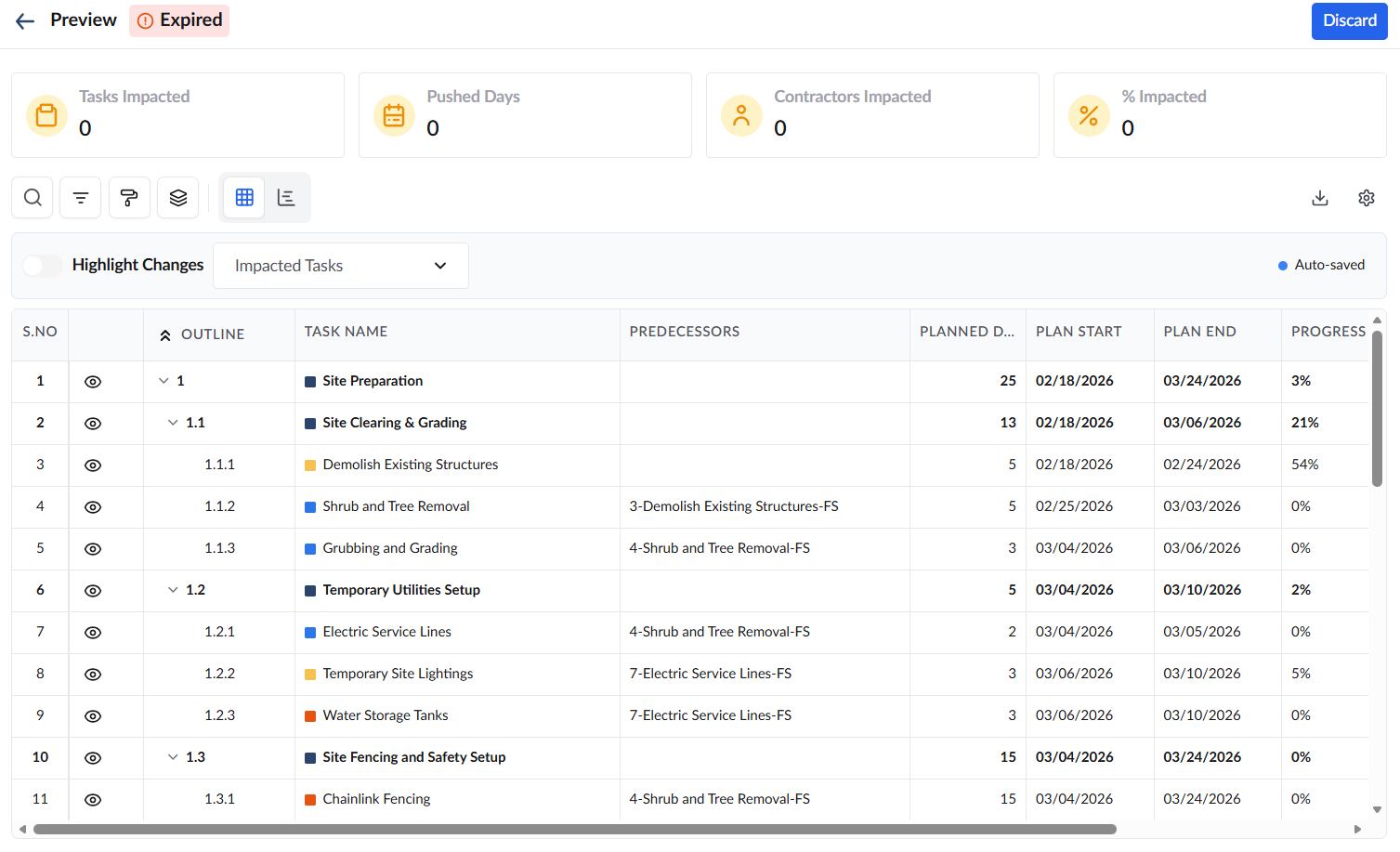
- Click 'Discard' at the top-right.
Note: The 'Discard' button only appears after the review window has lapsed.
- Click 'Confirm' to clear the reschedule draft
Was this article helpful?
That’s Great!
Thank you for your feedback
Sorry! We couldn't be helpful
Thank you for your feedback
Feedback sent
We appreciate your effort and will try to fix the article