Many inspections and checks on a construction site repeat on a fixed cycle: daily site safety walks, weekly equipment inspections, monthly quality audits. Instead of creating and assigning the same checklist by hand every time, you can set up a checklist schedule once. Linarc then creates the checklists automatically on a daily, weekly or monthly basis and assigns them to the right people.
- A schedule links a checklist template to your project, the person or project role responsible for it, and how often it repeats.
- You can assign scheduled checklists to a specific team member or to a project role within your own company. When you choose a role, every person in your company who currently holds that role on the project receives their own checklist each time.
- Once you start scheduling, the checklists are generated automatically overnight on every matching date and assigned to the selected people, who are notified as usual.
- Generated checklists follow the standard checklist workflow. Assignees complete and submit them, and you can review and download them like any other checklist.
- Only the person who created a schedule can edit, stop or delete it. Stopping or deleting a schedule never removes the checklists already generated from it.
Note:
- Checklist schedules are set up from the web console. Assignees can complete the generated checklists from either the web console or the mobile application.
- Scheduled checklists can be assigned only to members of your own company. Unlike regular checklists, which a general contractor can assign to its own team members or route to a subcontractor, scheduled checklists cannot be routed to another company.
- The company type and business type set on the template are also not taken into account, so you can schedule any published template for your own team, even one intended for a different type of company.
Background on Checklist Templates: Every checklist is generated from a template in your company’s master list of checklist templates. A template is organized into sections, each containing the items to be checked. Each item’s response can be set up as Yes/No/NA, Pass/Fail, a number, a date, a dropdown choice or text. When you schedule a checklist, you pick the template once, and every checklist the schedule creates includes its sections and items. See Manage Checklist Templates to learn more.
Before You Begin
- You need permission to create checklists in the project to set up a schedule, and permission to view checklists to see the list of schedules.
- The checklist template you want to use must be available in the company-level master list of checklist templates. See Manage Checklist Templates.
- To assign checklists to a role, ensure that the required team members from your company hold that role in the project team.
To schedule a recurring checklist
- Ensure you are on the 'Checklist Lists' screen within the 'Quality' module of the project. If not:
- Click the main menu at the top-left
- Click 'Checklist' under 'Quality' in the menu drop-down.
- The 'List' screen opens by default.
You can initiate a scheduled checklist creation process from either the 'Board' screen or the 'List' screen.
- Click the 'Schedule Checklist' button at the top-left of the screen.
Creating a new schedule involves two steps:
Step 1 - Select the Checklist Template
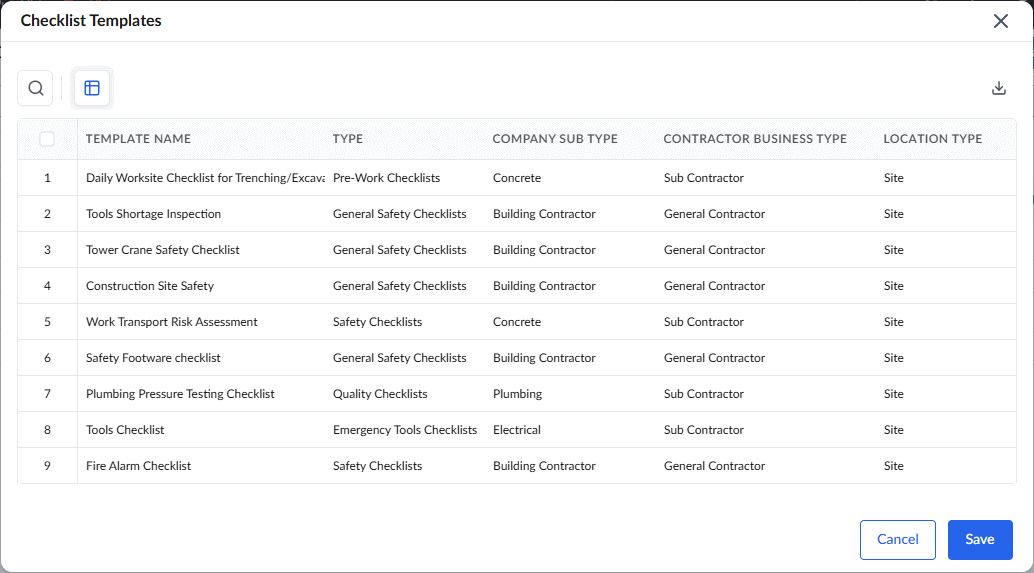
- Select the template you want to use by clicking its serial number in the 'Checklist Templates' pop-up and, then click 'Save'.
Step 2 - Schedule and Assign the Checklist
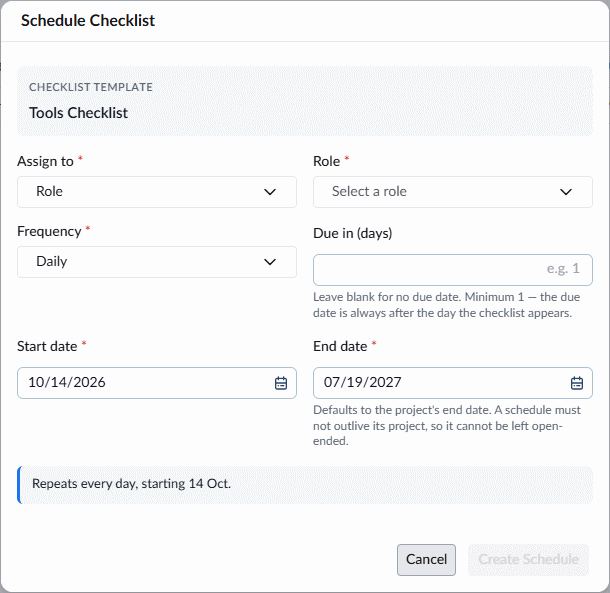
Enter the schedule details:
- Template: Shows the template you selected. This field cannot be edited here.
- Assign to: Choose whether the checklists go to a project role or to a specific person in your project team.
- Role: Available when you assign to a role. Select the project role responsible for the checklist, for example, Foreman. The text below the field shows how many people currently hold the role. Each of them receives their own checklist every time the schedule runs. If nobody holds the role, a warning is shown, because no checklists would be created.
- Person: Available when you assign to a person. Select the team member from your company responsible for the checklist.
- Frequency: Select how often the checklist is created:
- Daily - Every day.
- Weekly - Once a week, on the same weekday as the start date.
- Monthly - Once a month, on the same day of the month as the start date.
The text below the field confirms the cycle in plain words, for example, "Repeats every Tuesday, starting 4 Aug".
- Start Date: The date from which the schedule runs. This defaults to the current day. You can change the date if required. The start date sets the pattern: a weekly schedule that starts on a Tuesday repeats every Tuesday.
- End Date: The last date on which a checklist is created and assigned. The end date cannot be earlier than the start date or later than the project end date. This defaults to the project end date. Change the date if required.
- Due in (days): Optional. The number of days within which each assignee has to complete their checklist. The due date of each checklist is its creation date plus this number of days.
Once you're ready, click 'Create Schedule'.
The schedule becomes active and the first checklists are created from the next scheduled date onward.
Tip: When you assign a frequent schedule to a role, the number of checklists can add up quickly. For example, a daily schedule for a role held by 10 people creates 10 checklists a day, or around 300 a month. Check the number of people below the 'Roles' field before you start.
How Scheduled Checklists Are Created
- Checklists are generated automatically overnight on every date that matches the schedule.
- For role-based schedules, Linarc checks who holds the role each time the checklists are created. If someone joins or leaves the role, the change applies from the next run.
- Checklists are not created after the project end date. If a scheduled date falls on a non-working day or holiday, the checklist is created on the next working day instead.
- Similarly, for a monthly schedule that starts on the 29th, 30th or 31st, in months without that date, the checklist is created on the next working day.
- Each generated checklist is assigned to its person straight away, and the assignee is notified. The assignee is set by the schedule, so it cannot be changed on a generated checklist.
- Generated checklists appear in the 'In Progress' stage and follow the standard workflow. The assignee completes and submits the checklist, and you can review it and download it as a PDF. See Complete and Submit a Checklist and View and Download Completed Checklists.
You can view the list of recurring checklists on the 'Checklist Schedules' screen. See View Scheduled Checklists for more details.
See the following sections to learn more:
Was this article helpful?
That’s Great!
Thank you for your feedback
Sorry! We couldn't be helpful
Thank you for your feedback
Feedback sent
We appreciate your effort and will try to fix the article