The Plan Sets screen serves as the central hub for document control, allowing authorized stakeholders to upload, manage, and distribute drawing sets throughout the project lifecycle. This ensures that all team members are aligned with the most current plan sheets.
- Upload Plan Sets: Authorized team members can upload original drawing sets or revised versions to update existing sheets. See Upload Plans for comprehensive guidance.
- Refine Draft Sets: Before finalizing an upload, you can add additional sheets to a draft set or remove unnecessary ones to ensure the set is accurate and complete.
- Publish Plans: Finalizing the set triggers Linarc’s intelligent parsing engine, which separates files into individual sheets and organizes them for immediate project use.
- Distribute & Share: Configure granular access rights to ensure the right sheets are shared with the appropriate collaborating teams. See Share Plan Sets for detailed instructions.
This article explains how to manage a Draft Plan Set by adding or removing sheets, and follow the steps to officially publish the finalized set to the project.
To open the draft plan sets
- Click the Main Menu icon at the top-left of your screen.
- Select 'Plan Sheets' under the 'Documentation' section of the drop-down menu
- Choose 'Plan Sets' on the left.
The 'Plan sets' screen shows the plan sets that were uploaded. You can add new plan sheets or a revised plan set to a set and publish them to share with the team.
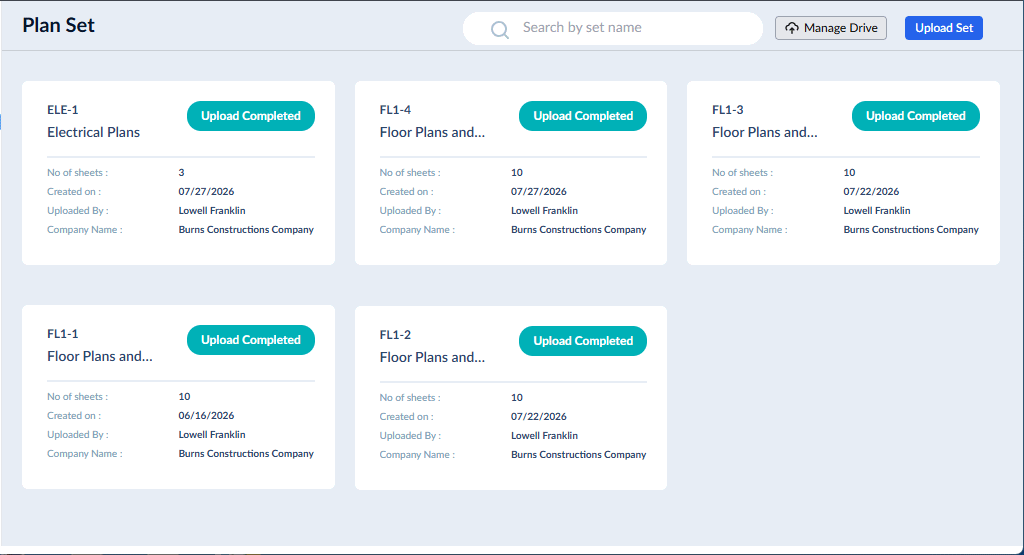
- Click on a set to view the plan sheets in it, add new sheets, and publish the set
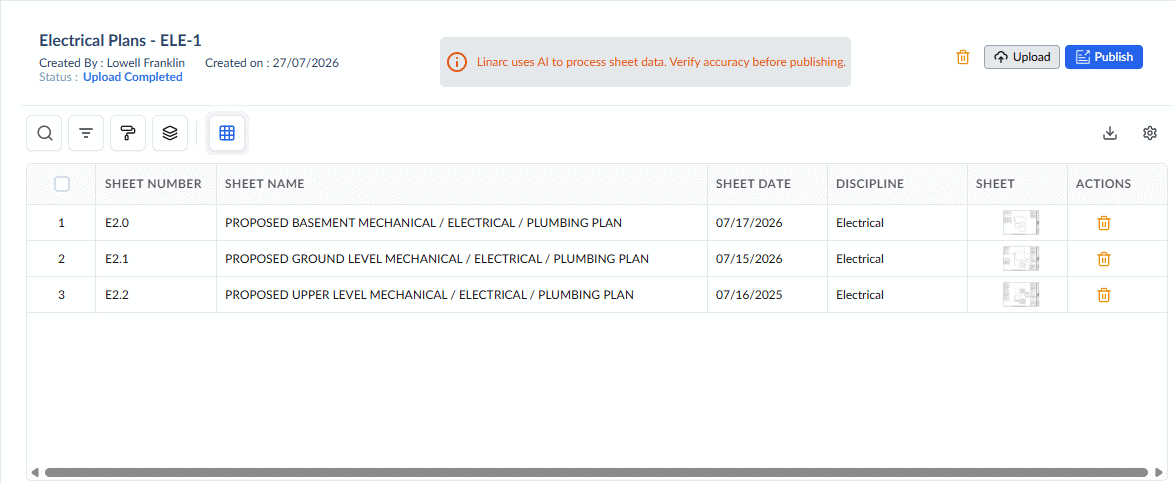
- Click on the field to enter missing data or edit auto-fetched data, and enter the details. You can use the Copy-Paste function using the keyboard shortcuts to clone or duplicate data in the cells and adjust them as required.
- Click 'Upload' to add new plan sheets or plan sets as PDF files. The process is similar to uploading a new plan set.
- Click
 in the row to remove any unwanted sheet from the set.
 - Once you are done, click the 'Publish' button at the top to save the sheets to the project
- If the plan set is no longer needed or uploaded inadvertently, click
 at the top right to remove the draft
You can remove only those plans in the 'Draft' state, and cannot remove published sets.
Was this article helpful?
That’s Great!
Thank you for your feedback
Sorry! We couldn't be helpful
Thank you for your feedback
Feedback sent
We appreciate your effort and will try to fix the article