The Linarc plan viewer automatically displays the latest version of your drawing for any assessment and includes built-in tools for reviewing, marking up, and sharing the document.
From this single screen, you can:
- Markup: View, create, and edit detailed annotations.
- Compare: Overlay different plan sheets or previous revisions to spot changes.
- Export: Download plan sheets (including your markups) as an image file.
- Collaborate: Share the drawing directly with necessary team members and stakeholders.
- Navigate: Quickly jump to a different plan sheet without leaving the viewer.
If you do not already have your desired drawing open, you can easily locate it from the main Plan Sheets screen.
To access a plan drawing
- Click the Main Menu button in the top-left corner.
- Under the 'Documentation' section, select 'Plan Sheets.' (Note: If you are already working within the Plans module, click 'Plan Sheets' on the left-hand menu).
The 'Plan Sheets' screen opens in grid view by default. If required you can switch to list view by selecting the option at the top-right.
- Select your drawing
- In Grid View: Click the thumbnail image of the desired sheet.
- In List View: Click the sheet number or the sheet name to open it in the viewer.
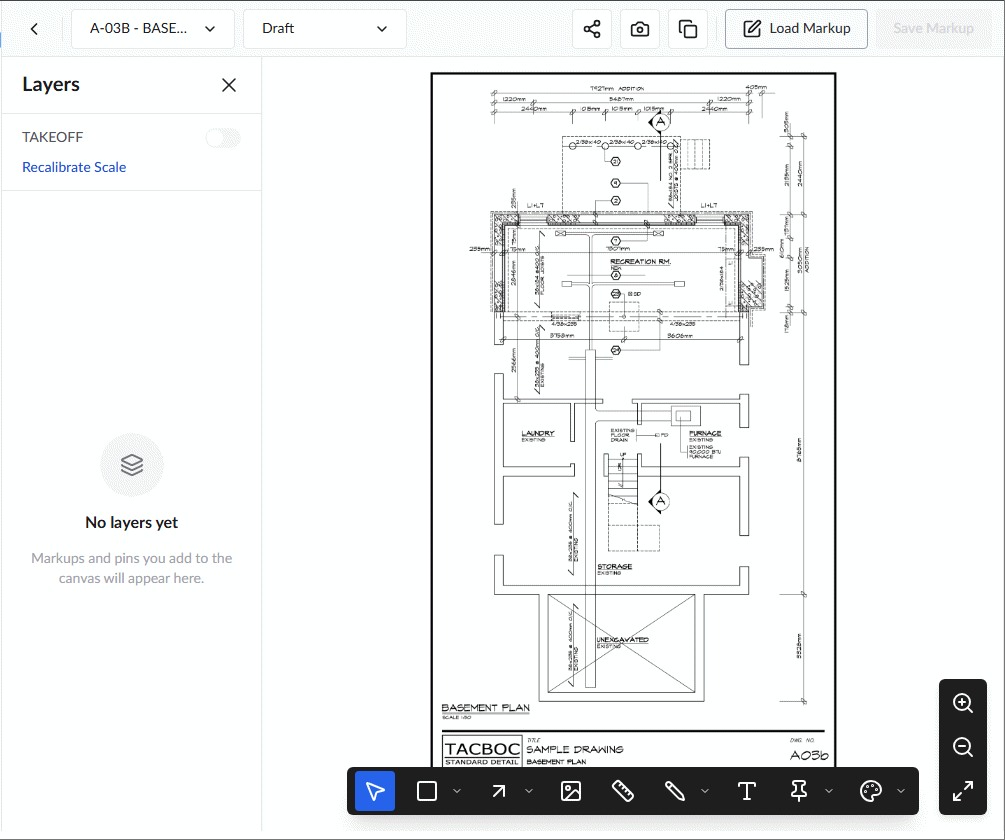
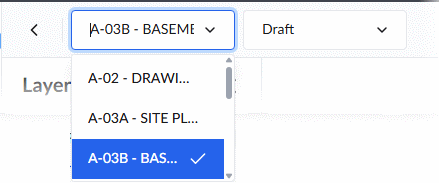
The drawing opens the latest version as a draft sheet, ready to create any markups. You can switch to a different sheet at anytime without leaving the module, using the first drop-down at the top-left:
From the sheet view, you can perform the following actions:
Navigation & Viewing
Zoom-In and Out - Use the mangification tools at the bottom right to zoom-in and zoom-out. You can also use the following keyboard shortcuts:
- Press the '+' button on your keyboard repeatedly to zoom-in
- Press the '-' button on your keyboard repeatedly to zoom-out
- Press 'Enter' to reset
Working with Markups
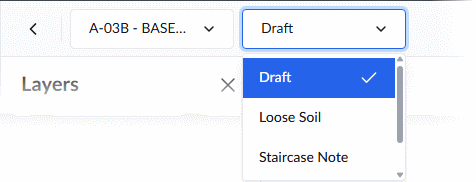
Open with a Selected Markup: Use the second drop-down menu at the top-left to load the sheet with a specific existing markup displayed.
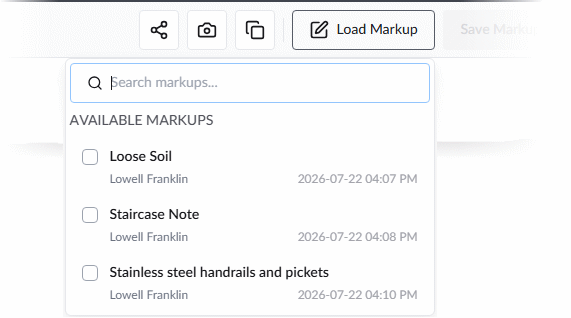
Load Existing Markups: Use the Load Markup tool to superimpose selected markups over your current view of the sheet. See View Markups for more guidance
Annotate: Use the markup toolbar at the bottom of the screen to create new markups. See Create and manage new markups to learn more.
Perform a Take Off: Utilize the shape and length measurement tools to perform accurate measurements for take offs directly on your plan drawing. See Create a Takeoff Measurement for guidance.
Using the Layer Editor: The slidable 'Layer Editor' pane on the left displays a complete list of elements, neatly organized by their respective markups.
- Highlight Elements: Click on any element in the list to instantly highlight it on the plan sheet.
- Manage Markups: From this pane, you can show/hide elemnts, add new elements, rename existing ones, and continue customizing your markups. See Edit Markups for more details.
Advanced Actions
Compare Sheets: Click  to select a sheet and view an overlay comparison. See Compare Plan Sheets and Revisions for guidance.
Download Sheet with Markups: Click  to save a local copy of the plan sheet (as an image or PDF) with the currently viewed markups included. See Download Plan Sheet Markups to learn more.
Share the plan sheet - Click  to configure visibility and assign access levels to team members and other project stakeholders. See Share a Plan Sheet for guidance.
Was this article helpful?
That’s Great!
Thank you for your feedback
Sorry! We couldn't be helpful
Thank you for your feedback
Feedback sent
We appreciate your effort and will try to fix the article