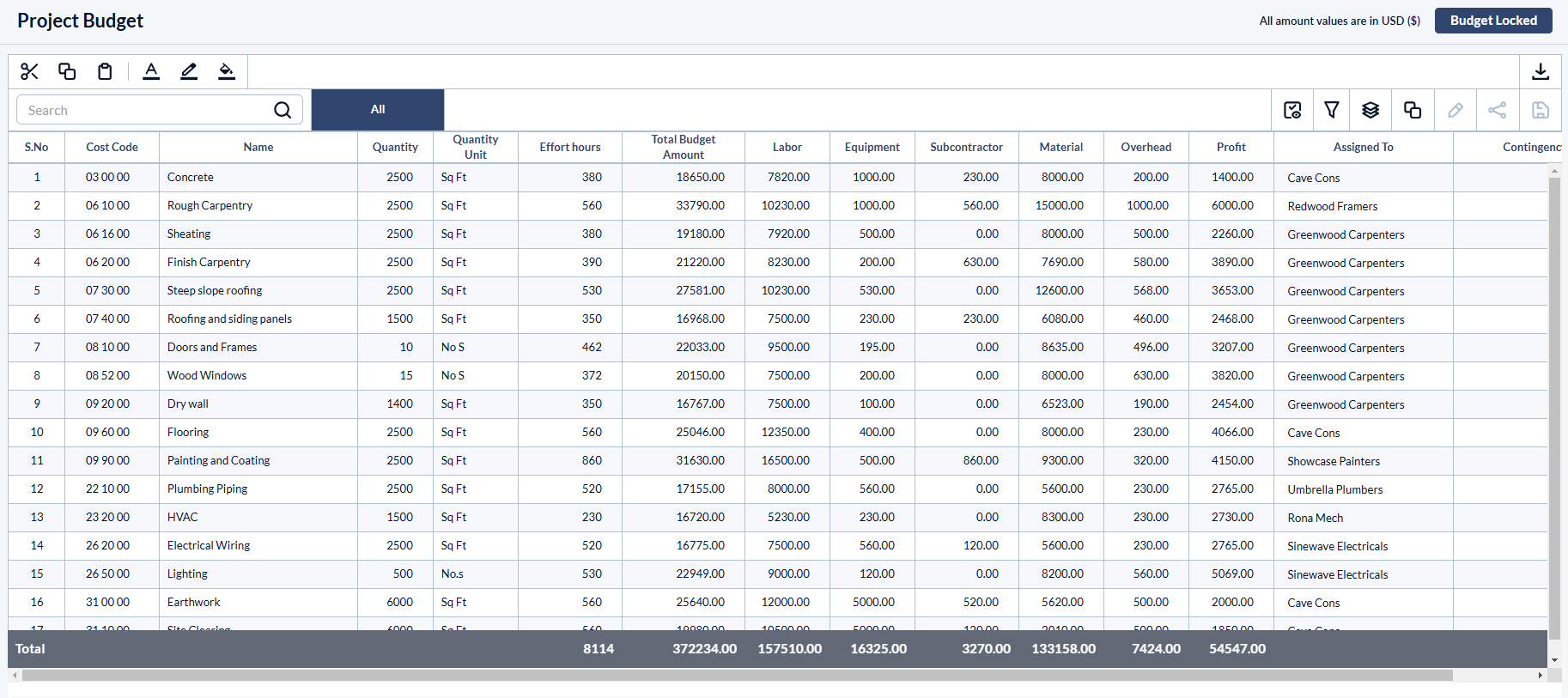
After adding the original budget amount for all line items with cost values of different cost types, allotting line items to the contractors, and finalizing the saved project budget, you can lock and publish it. This sets the budget as the baseline. You can allot the amounts from each budget line item to related tasks, activities, deliverables, etc., in the project's master schedule from the locked budget. These values are used for various financial operations and controls like SOV calculations, monitoring project performance, etc. Once locked, the budget cannot be altered in any way, hence protected from accidental changes. You cannot:
- Edit the original budget values.
- Add subline items
- Change the assignee
- Delete any line items.
Any further modifications to the budget can only be done through change orders, which carry respective estimates.
To lock a budget
- Ensure that you are in the Budget Upload screen. if it is not already opened:
- Click the app launcher
 and select 'Finance.'
 - Click 'Budget' at the top.
- Click the app launcher
- Select 'Original Bid' from the options on the left
Search, filter, and sorting options
- Use the 'Search' box located at the top left to find a template using any value from the table as search criteria
- Right-click the column header and customize the display and order of the columns as you wish
- The options at the top right allow you to filter the entries, create nested groups of entries, and manage personalized and customized views of the table. Use the links below to learn more about these:
- Hover over a column header and click the
 icon to sort the rows in ascending or descending order of entries in that column
View Groups and Subtotals
- You can get totals and subtotals of numerical data for any selected set of records by grouping and applying nested grouping. Use the
 icon at the top right to organize the data by column headers
 - The system automatically aggregates relevant numerical values, giving a structured breakdown and a clear view of the grand total distribution. See Group and Organize Items in a List View for more details
Download as Excel Sheet
- Click the
 button at the top right to save a local copy of the list in Excel format for sharing and record-keeping. See Download List Views and Logs in Excel Format for more details
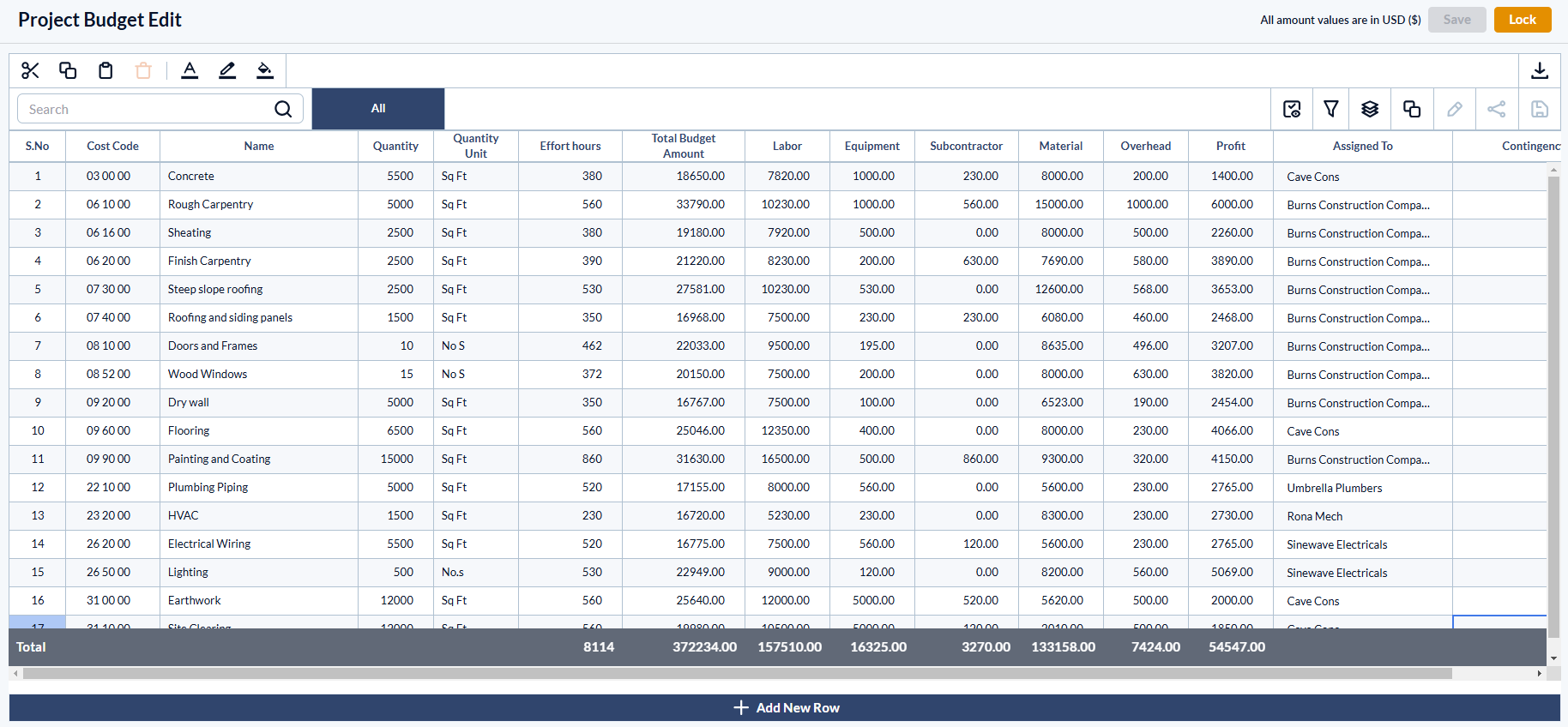
- Review the project budget and ensure it exhaustively covers all planned work
- Ensure that all line items are assigned to the respective subcontractors
- Click 'Lock Budget' on the top right
Note: The 'Lock' button appears only for saved budget. If you haven't done so, click 'Submit' to save the budget.

- Click 'Lock' in the confirmation dialog.
Was this article helpful?
That’s Great!
Thank you for your feedback
Sorry! We couldn't be helpful
Thank you for your feedback
Feedback sent
We appreciate your effort and will try to fix the article