The Cost Codes screen is the central hub for building and managing your company’s master library of project cost items. Properly configuring this master list ensures accurate financial tracking across all your budgets, estimates, schedules, change orders, and more.
Linarc offers three flexible methods to build your company cost code list:
- CSI MasterFormat: Import standard divisions and cost items.
- Manual Entry: Create individual, custom codes for specific activities.
- Spreadsheet Import: Upload your entire existing list in bulk via Excel.
To view the Cost Code List
- Log in to the company management console
- Click ‘Cost Codes’ on the top
The 'Active' screen opens by default showing all available cost codes and items.
- Click 'Active' on the left to return to this screen if you are in a different screen in the 'Cost Codes' menu
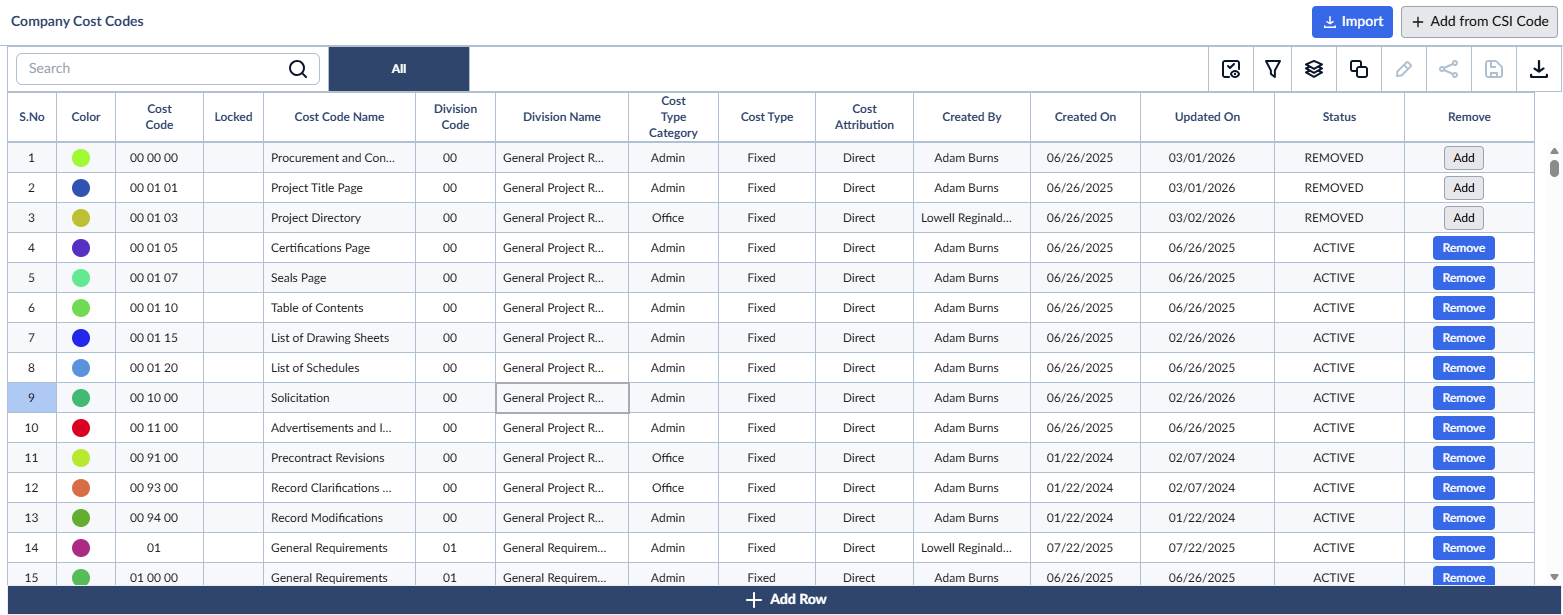
Column descriptions:
- Color: The color assigned to the cost item for easy visual grouping and identification.
- Cost Code: The unique identifier of the cost item or the CSI code.
- Locked: Indicates that the cost code is already in use in one or more projects across the company. Locked cost codes cannot be deleted or modified to preserve data integrity and prevent inconsistencies in existing records.
- Cost Code Name: A short, descriptive label for the cost item.
- Division Code: The numeric code representing the CSI division or custom classification group to which the cost item belongs.
- Division Name: The name of the division corresponding to the division code, providing a clear description of the broader category of work.
- Cost Type Category: The category of the work (e.g., ADMIN, OFFICE, FIELD, T&M, or Recurring Cost).
- Cost Type: The classification of the expense. Can be Fixed (predefined allocation) or Variable (changes based on usage or conditions).
- Cost Attribution: How the cost is allocated. Can be Direct (project-specific, like materials, labor, and equipment) or Indirect (overhead, miscellaneous, and subcontractors).
- Created By: The user who originally created the cost code.
- Created On: The date when the cost code was created.
- Updated By: The user who last modified the cost code.
- Updated On: The date of the most recent update.
- Status: Indicates whether the cost code is currently active or inactive.
- Remove: An action button to suspend the cost code from your active company list.
You can add and remove categories and task items to your cost code list anytime.
Use the links below to jump to the section you need help with:
Search, filter, and sorting options
The Cost Codes screen provides several tools to help you find and organize your data:
- Sort: Hover over any column header and click the sort icon
 to organize rows in ascending or descending order.
 - Search: Use the search box at the top left to quickly find specific codes using any value from the table.
- Customize Columns: Right-click a column header to change the display and order of the columns.
- Advanced Views: Use the options at the top right to filter entries, create nested groups, and manage custom views.
Download the Cost Code list
- Click the
 button at the top right of the screen to save a local copy of the list in Excel format. This is useful for offline sharing and record-keeping. See Download List Views and Logs in Excel Format for more details
Was this article helpful?
That’s Great!
Thank you for your feedback
Sorry! We couldn't be helpful
Thank you for your feedback
Feedback sent
We appreciate your effort and will try to fix the article