Recurring cost entries submitted by requestors must be reviewed, accepted, and confirmed by authorized managers before they become active. This additional validation layer enables finance managers or other authorized users to verify cost allocation details, correct discrepancies, and ensure compliance with project financial guidelines. If the requestor has the necessary permissions, they can confirm the entries they have submitted.
The system will only auto-generate payment or approval requests for confirmed entries, based on their respective recurrence periods.
To view recurring costs entries
- Ensure you are on the 'Config' screen within the 'Recurring Cost' module of the project. If not:
- Click the main menu at the top-left
- Click 'Recurring Cost' under the 'Finance' menu.
- Select 'Configure' at the top and 'Recurring Cost' at the left
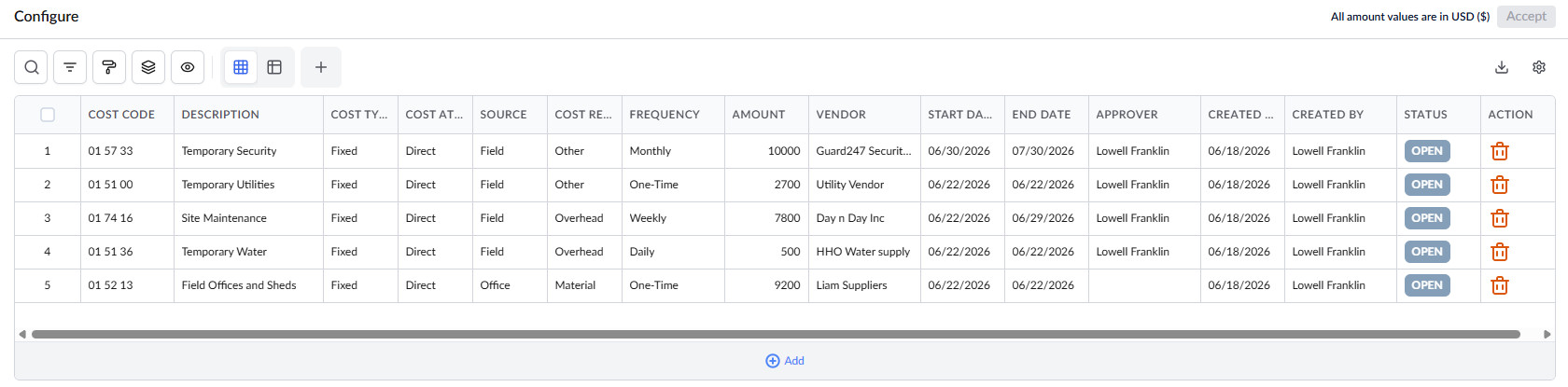
Edit Recurring cost details
- Double-click the cells to edit the details. You can edit the following details:
- Cost code - The unique code code associated with the cost item. Select the cost code from the drop-down list.
- Source - The origin of the cost entry. Possible values are Field, Office, Administrative, and Finance
- Cost Relates To - The cost type. Possible values are Material, Other, and Overhead
- Frequency - The repetition interval for the recurring cost. Possible values are One Time, Daily, Weekly, Monthly, Quarterly, Yearly, and Ad-Hoc
- Amount - The estimated cost value for each recurring instance. Enter the exact amount as per the recurring schedule.
- Vendor - The name of the vendor or supplier associated with the recurring cost.
- Start Date - The date from which the recurring cost becomes active. This marks the beginning of the cost duration.
- End Date - The final date on which the recurring cost is expected to end. This defines the full duration of the recurring schedule.
- Approver - The designated individual responsible for reviewing and approving cost requests associated with this entry. Select from the list of authorized project approvers.
Confirm Recurring cost entries
- Open the recurring cost 'Config' screen as mentioned above.
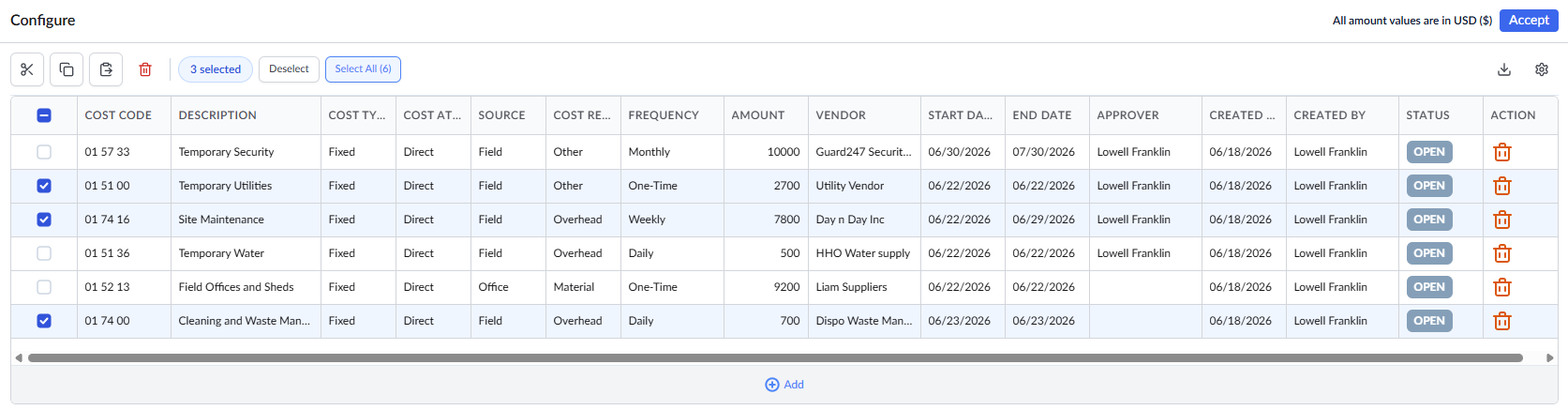
- Hover your mouse on the serial number of the recurring cost and click the checkbox to select the recurring cost
- Click the 'Accept' button at the top.
The request is confirmed, and the recurring cost request will automatically be generated based on their frequency.
One-Time - A single, non-repeating cost entry created for a specific date or event.
Daily - A cost that recurs every day over the specified duration.
Ad-Hoc - An unscheduled, on-demand cost that does not follow a fixed frequency. Logged manually as and when the cost arises through mobile devices from the field.
Weekly – A recurring cost that is triggered once every week, typically processed every Saturday.
Monthly – A cost that recurs once every month on a fixed schedule, and is set to automatically generate on the last date of the month.
Quarterly – A recurring cost that occurs once every three months, which is scheduled for the last day of each quarter.
Yearly – A cost that recurs annually, typically used for long-term agreements, annual insurance premiums, etc, processed on the last day of the year.
Search, Filter, and Sorting Options
- Click the magnifier icon and use the 'Search' box located at the top left to find an entry using any value from the table as search criteria
- Click any column header to sort the rows in ascending or descending order based on that column's data.
- Click the cog wheel icon at the top right to adjust the display density and customize the display and order of the columns. See Customize Columns in List Views.
- The options at the top left allow you to filter the entries, create nested groups of entries, highlight cells and manage personalized and customized views of the table. Use the links below to learn more:
- Get totals and subtotals of numerical data for any selected set of records by grouping and applying nested grouping.
- Use the
 icon at the top right to organize the data by column headers. The system automatically aggregates relevant numerical values, giving a structured breakdown and a clear view of the grand total distribution. See Group and Organize Items in a List View
for more details
icon at the top right to organize the data by column headers. The system automatically aggregates relevant numerical values, giving a structured breakdown and a clear view of the grand total distribution. See Group and Organize Items in a List View
for more details
- Click the 'Download' icon at the top right to save a local copy of the list in Excel format for sharing and record-keeping. See Download List Views and Logs in Excel Format for more details
Was this article helpful?
That’s Great!
Thank you for your feedback
Sorry! We couldn't be helpful
Thank you for your feedback
Feedback sent
We appreciate your effort and will try to fix the article