Link a dedicated Google Drive folder to your Linarc company account to establish a seamless 2-way sync for your project documents. You can choose to use an existing folder, but we highly recommend creating a brand-new folder specifically for this integration.
To connect, simply share your chosen folder with drive-sync@linarc.io and grant 'Editor' access. Once linked, the folder acts as an external drive for all your projects.
After the initial setup:
- Linarc creates a dedicated subfolder within your Google Drive folder for each project to which the GDrive synchronization is enabled.
- Any additions, deletions, or renamed files are instantly updated across both platforms.
- Both manual uploads and system-generated documents (such as RFIs, Submittals, and Change Orders) are synced automatically.
- File sharing internally or externally is managed directly through your standard Google Drive permissions.
This article covers linking at the company level. To set this up for an individual project, please see our guide on Sync Project Files with Google Drive.
Pre-requsites:
Before you begin, make sure the following are in place:
- A dedicated folder in your Google Drive for storing files from your Linarc projects. If you don’t already have one, create a new folder.
- Share the folder with drive-sync@linarc.io, granting Editor (or higher) permissions.
- Copy the Folder URL of this Google Drive folder from your browser's address bar.
To link your folder on Google Drive with your company account
- Log in to your company admin console
- Click 'Integrations' at the top
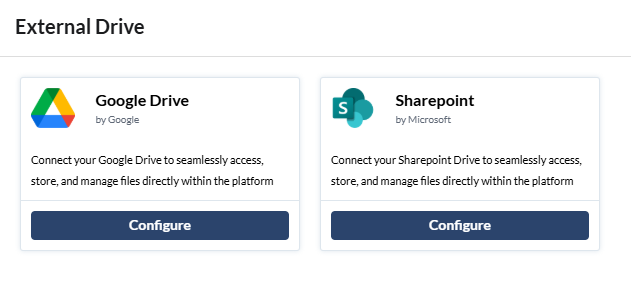
- Click the 'Configure' button under Google Drive
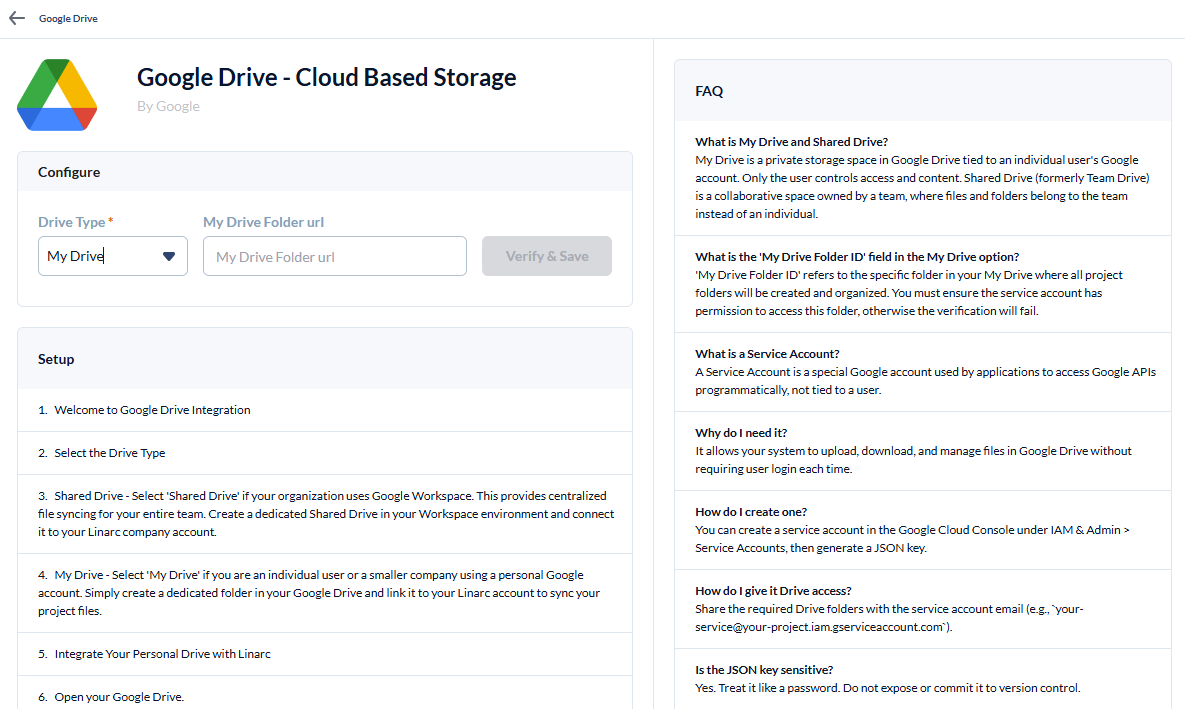
Enter the following details:
- Drive Type - Select 'MY_DRIVE' from the drop-down.
- My Drive Folder URL- Paste the folder URL you just copied from the browser on which your GDrive is open.
Reminder: Make sure the folder is shared with the dedicated Linarc user account drive-sync@linarc.io and assigned Editor (or higher) permissions. This access is required for Linarc to sync and push files from your project repositories into the folder. Once a folder is linked, it cannot be changed later.
- Click the
 button to validate your details.
A confirmation is shown with the Drive Folder ID, extracted form the Folder URL:
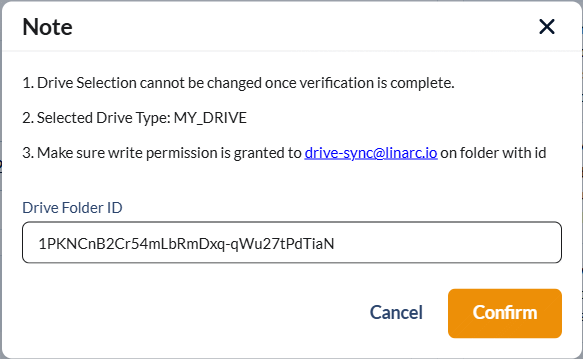
- Click 'Confirm' to confirm your account preferences.
The system verifies whether it can access the folder. On successful verification, the folder is linked as external drive to your company.
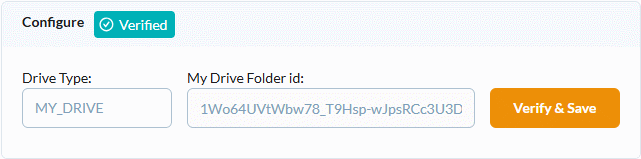
Once your shared folder is linked to your company, it appears as an available external drive across all your projects.
Was this article helpful?
That’s Great!
Thank you for your feedback
Sorry! We couldn't be helpful
Thank you for your feedback
Feedback sent
We appreciate your effort and will try to fix the article