The Cost Summary Report provides a unified snapshot of planned costs and actual expenses for every task released to the field, covering indirect charges, operating costs, subcontractor payments, labor, materials, and more. These include normal scheduled tasks, T&M work, change order work and more.
- Cost Overview: Shows total costs across all categories for each task or deliverable, helping you understand its impact on overall project spending.
- Financial Control: Provides a complete view of expenditures to support accountability, variance tracking, and proactive cost management.
To view the overall job cost report
- Ensure that you are in the 'Jobcost Summary' screen. If not
- Click the App Launcher button
 in the top-right corner.
 - Select 'Finance' from the dropdown menu.
- Select 'Analytics' on the top and 'Job cost' on the left
- Choose the 'Summary' tab to open the overall cost report
- Click the App Launcher button
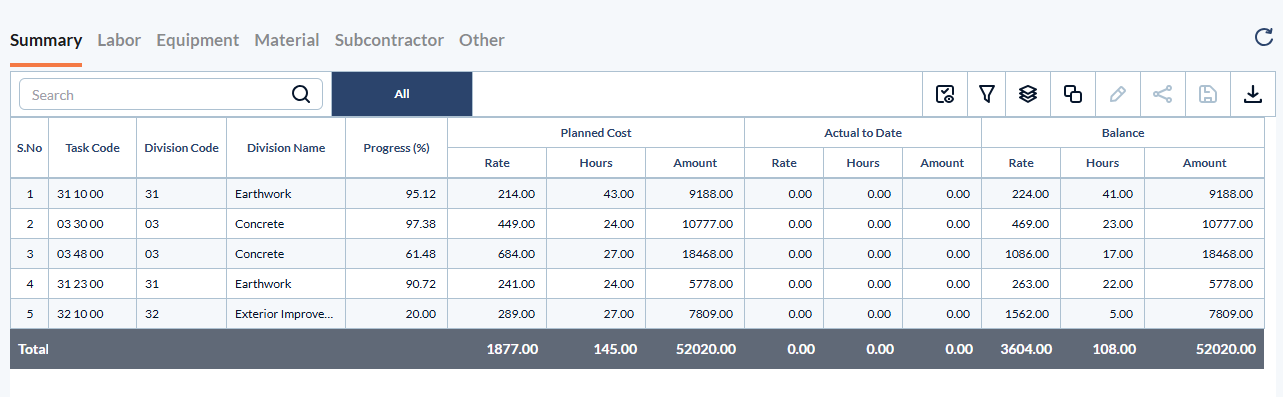
Task Code – A unique identifier assigned to a specific cost item or activity.
Name – The descriptive label of the task.
Division Code – The standardized numerical code of the discipline of work as per the CSI MasterFormat. Applicable only if your company's cost codes are inherited from the CSI MasterFormat.
Division Name – The descriptive name of the discipline of work.
- Progress – The percentage of work completed for the task.
- Planned Cost– The budgeted or estimated cost for completing the task as per the project plan.
Rate – The cost per unit of resource
Hours – The total number of labor or equipment hours logged for the task.
Amount – The total cost incurred, typically calculated as Rate × Hours for labor or equipment, or as the total expense for materials and other resources.
- Actual to Date – The cumulative cost incurred for the task from the start of the project up to date.
- Balance – The remaining budget available for the task, calculated as the planned cost minus the actual cost incurred to date.
Tasks that haven’t started or have no reported progress are highlighted, making it easy to anticipate and assess the future expenditures associated with those items.
You can view the costs associated with each cost type - Labor, Equipment, Material, Subcontractor, and Others by switching between their respective tabs. See the following pages to learn more:
- Labor Cost Report
- Equipment Cost Report
- Material Cost Report
- Subcontractor Cost Report
- Miscellaneous Cost Report
Search, filter and sort options:
- Use the 'Search' box located at the top left to find any project using any value from the table as search criteria
- Hover over a column header and use the sort icon to sort the table in ascending or descending order of the entries in that column
- Right-click the column header and customize the display and order of the columns as you wish
- The options at the top right allow you to filter the entries, and manage personalized and customized views of the table. Use the links below to learn more about these:
View Groups and Subtotals
- You can get totals and subtotals of numerical data for any selected set of records by grouping and applying nested grouping. Use the
 icon at the top right to organize the data by column headers.
 - The system automatically aggregates relevant numerical values, giving a structured breakdown and a clear view of the grand total distribution. See Group and Organize Items in a List View for more details
Download as Excel Sheet
- Click the
 button at the top right to save a local copy of the list in Excel format for sharing and record-keeping. See Download List Views and Logs in Excel Format for more details.
Was this article helpful?
That’s Great!
Thank you for your feedback
Sorry! We couldn't be helpful
Thank you for your feedback
Feedback sent
We appreciate your effort and will try to fix the article