Authorized office staff can create and publish bulletins to the intended audience. Once published, recipients are immediately notified to view the message. The system tracks all activity, sending automated alerts to participants whenever the bulletin is updated or a team member posts a comment.
- Set bulletins to Public for general project-wide announcements, or Restricted for sensitive communications limited to specific companies.
- Enhance your updates by attaching relevant documents, drawings, or images to provide necessary context.
- All published bulletins are archived chronologically, providing a complete audit trail of project instructions and revisions for future reference.
Use the following links to jump to the respective sections:
Create a Bulletin
Ensure you are on the 'Bulletin' screen within the 'Project Information' module of the project. If not:
- Click the main menu at the top-left
- Click 'Information' under 'Project' in the menu drop-down.
- The 'Project Information' screen opens by default.
- Click 'Bulletin' on the left
- Click the main menu at the top-left
- Click the
 button on the top right
The 'Create Bulletin' pop-up opens:
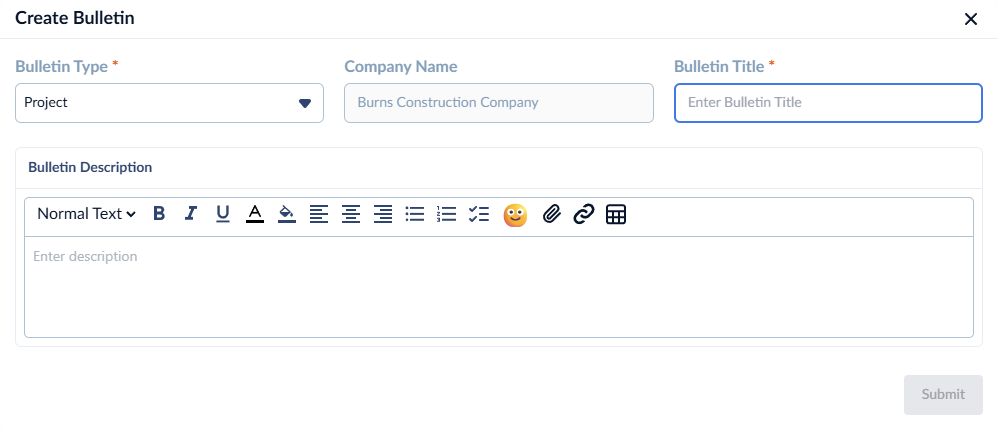
Enter the required details to configure the bulletin:
- Bulletin Type: Select the appropriate category from the dropdown menu (e.g., Project, Site, or Safety).
- Company Name: Automatically displays your organization's name.
- Bulletin Title: Provide a concise subject line that summarizes the announcement.
- Bulletin Description: Compose your full message. Use the formatting toolbar to customize text, insert tables, add hyperlinks, or use emojis.
- Attachments: Click
 at the top right to upload relevant photos, documents, or drawings to the bulletin.
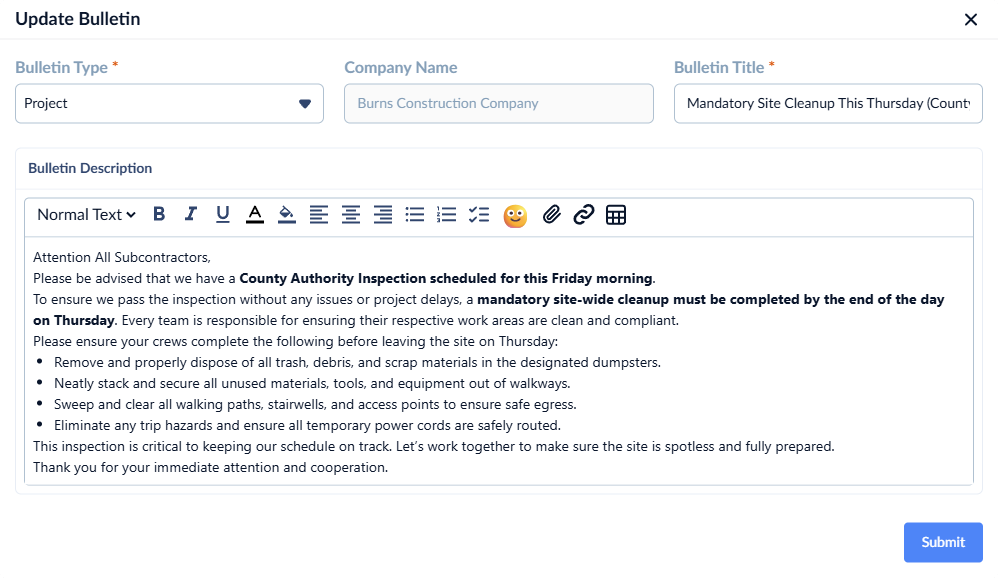
- Click the
 button to save the bulletin
By default, Linarc shares the bulletin to your company team members.
Share a Bulletin
Once saved, you can select the contractors who need to receive the bulletin.
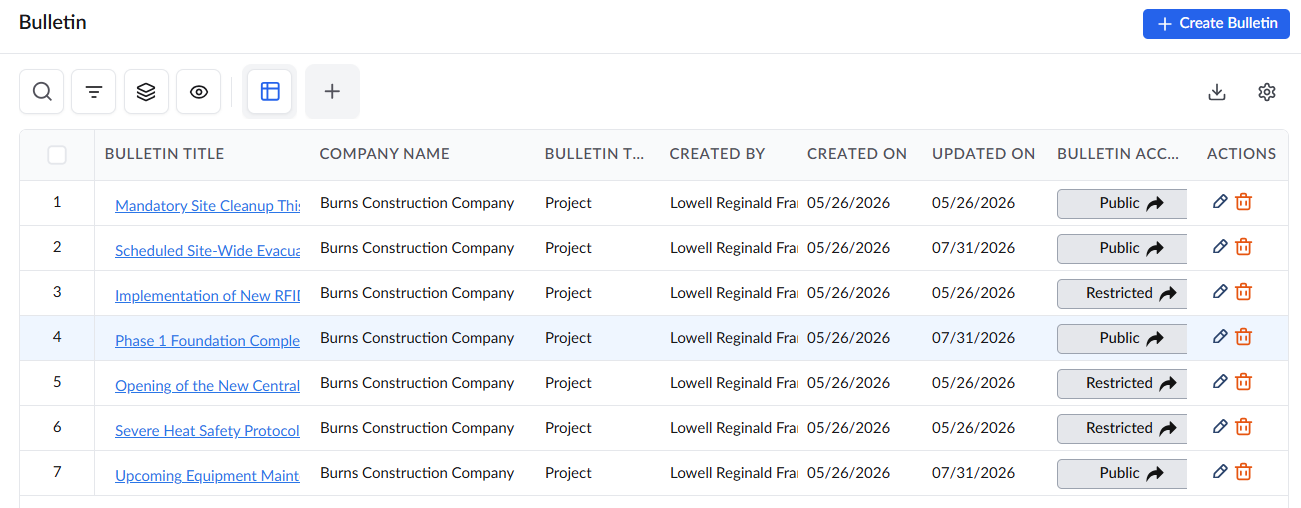
- Click the button from the 'Bulletin Access' column of the table
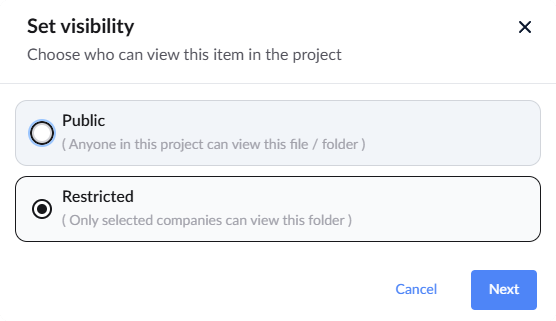
- Choose 'Public' to share the bulletin with all the stakeholders participating in the project
- Choose 'Restricted' to share the bulletin with selected stakeholders
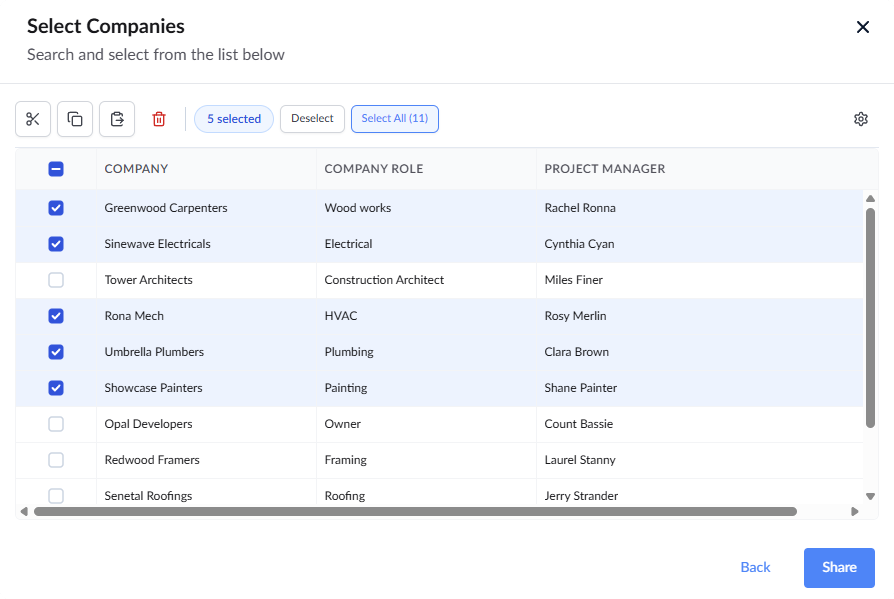
- Click the
 button to continue.
You can update the bulletin at any time. See Update or Delete a Bulletin for more details.
Was this article helpful?
That’s Great!
Thank you for your feedback
Sorry! We couldn't be helpful
Thank you for your feedback
Feedback sent
We appreciate your effort and will try to fix the article