The Budget module provides a complete history of your budget adjustments, allowing you to easily track all fund redistributions made to your budget line items.
View the Budget Reallocation History
The budget reallocation history provides a complete audit trail of every adjustment made between your budget line items. This ensures you always have clear, real-time visibility into exactly how and when funds were moved within your finalized and locked budget.
To view the budget reallocation history
Ensure you are in the master budget screen. If not,
- Click the main menu icon at the top-left of your screen.
- Select 'Owner Contract' or 'Contract' under the 'Finance & Controls' section in the drop-down menu.
Tip: Press and hold the 'Cmd' (Mac) or 'Ctrl' (Windows) key on your keyboard while clicking to open the module in a new browser tab.
- Select 'Adjustment History' on the left
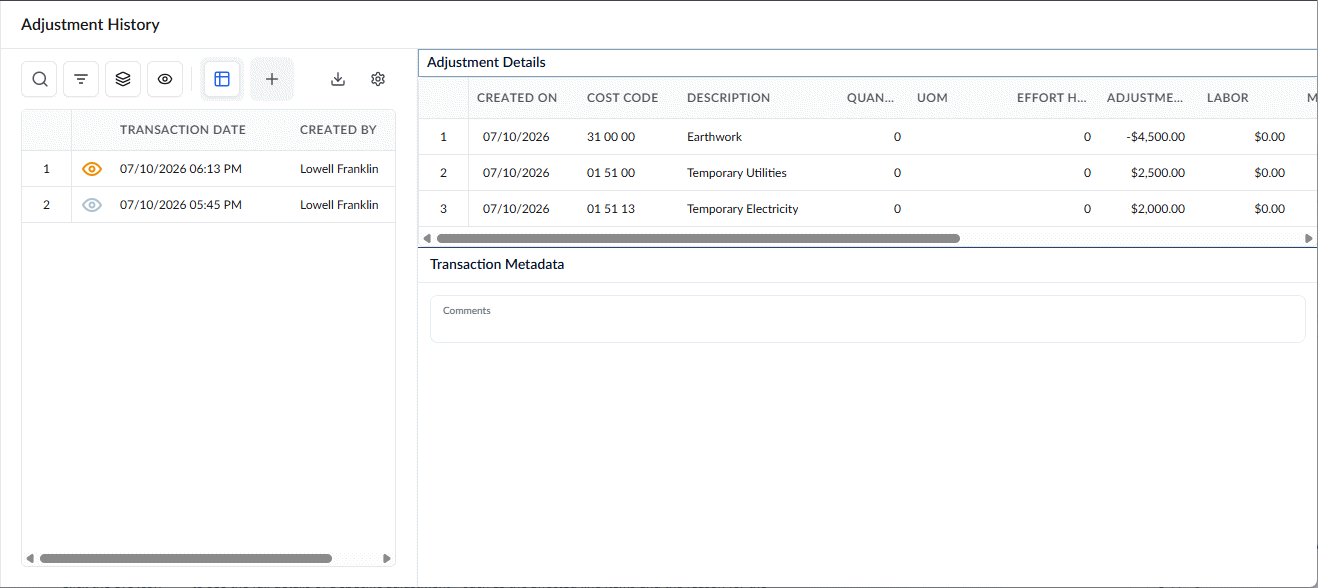
The left pane displays a chronological list of all budget modifications, including the date and the team member who made the change.
- Click the eye icon
 to see the full details of a specific adjustment—such as the affected line items and the reason for the change. The details will immediately appear in the right pane.
View Modifications on Individual Lines
The Budget screen allows you to view the budget modifications on individual line items.
To view modifications on individual lines
Ensure you are in the master budget screen. If not,
- Click the main menu icon at the top-left of your screen.
- Select 'Owner Contract' or 'Contract' under the 'Finance & Controls' section in the drop-down menu.
Tip: Press and hold the 'Cmd' (Mac) or 'Ctrl' (Windows) key on your keyboard while clicking to open the module in a new browser tab.
- Select 'Budget' on the left
- Verify that the 'Adjustment Mode' toggle is switched off so you are viewing the normal budget mode.
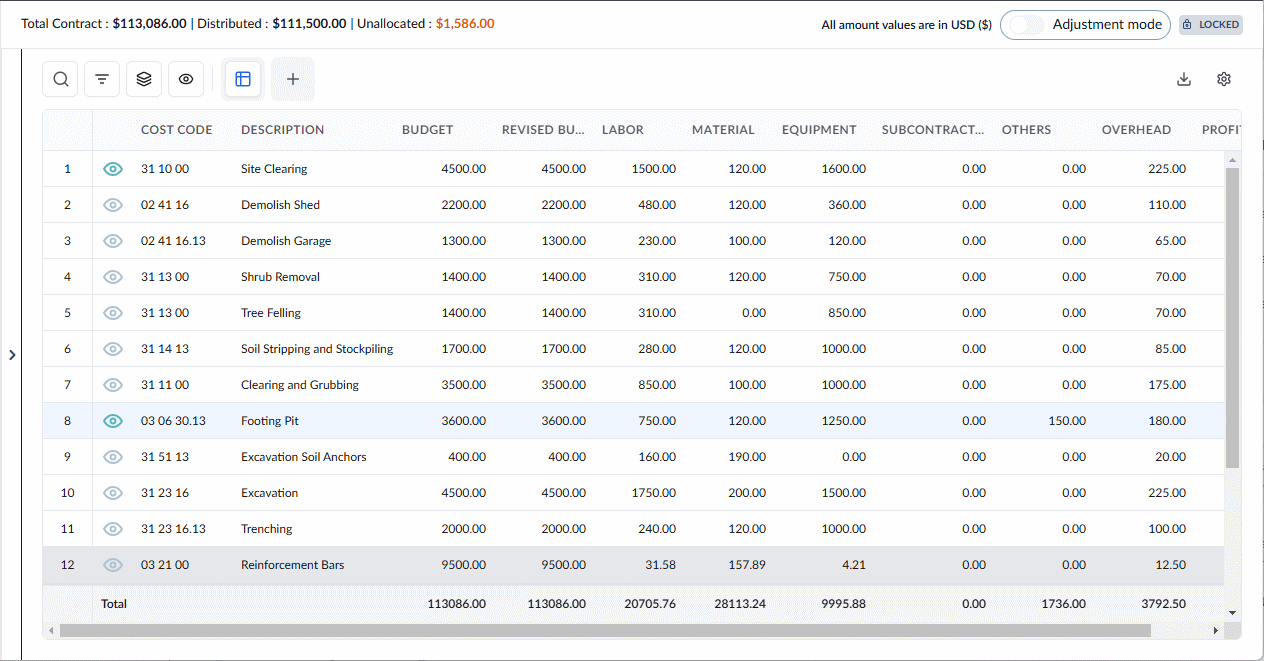
- Any line item affected by a modification will display a green eye icon
 on the left.
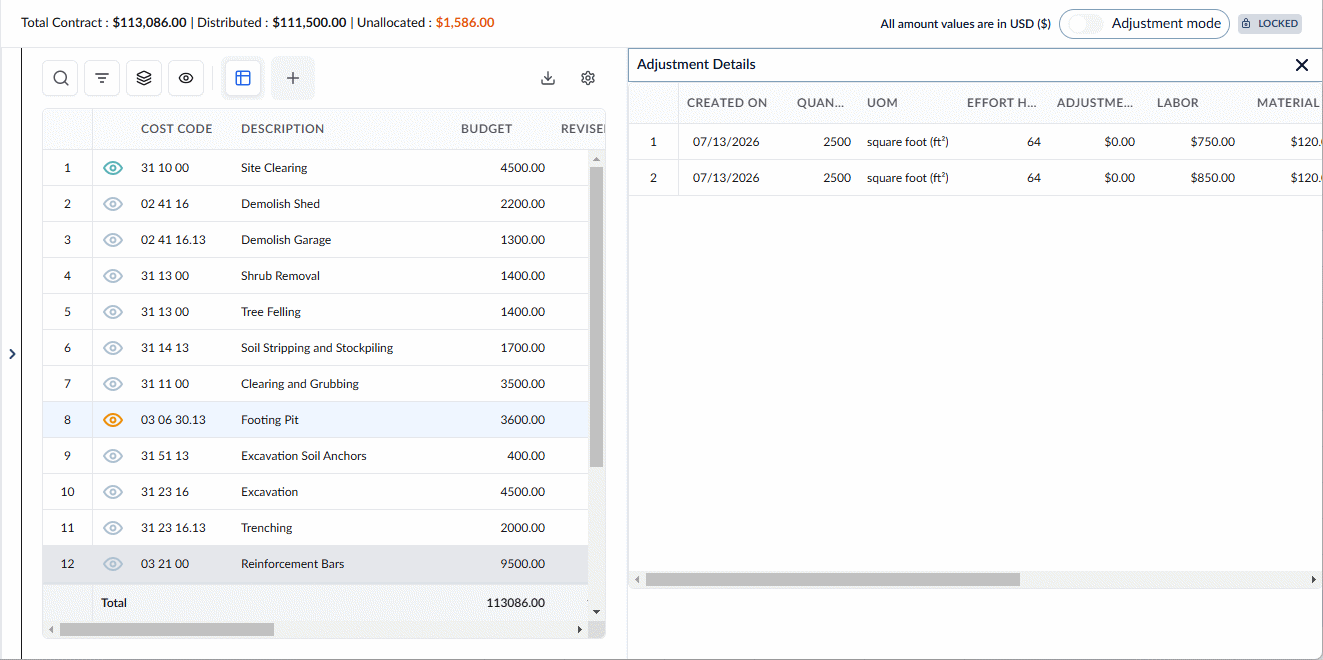
 - Click the green eye icon to open the full details for that specific line item and review its updated values.
Was this article helpful?
That’s Great!
Thank you for your feedback
Sorry! We couldn't be helpful
Thank you for your feedback
Feedback sent
We appreciate your effort and will try to fix the article