To calculate critical path by retained logic
- Ensure that you are in the 'Schedule' module of the project management console. If not,
- Click 'Schedule' under 'Scheduler' and select 'Grid' on the left
- Click the
 icon above the table to open the 'Grid + Gantt' view
- Click
 icon from the tool bar at the top
The system calculates the critical path using current task progress and actual execution status.
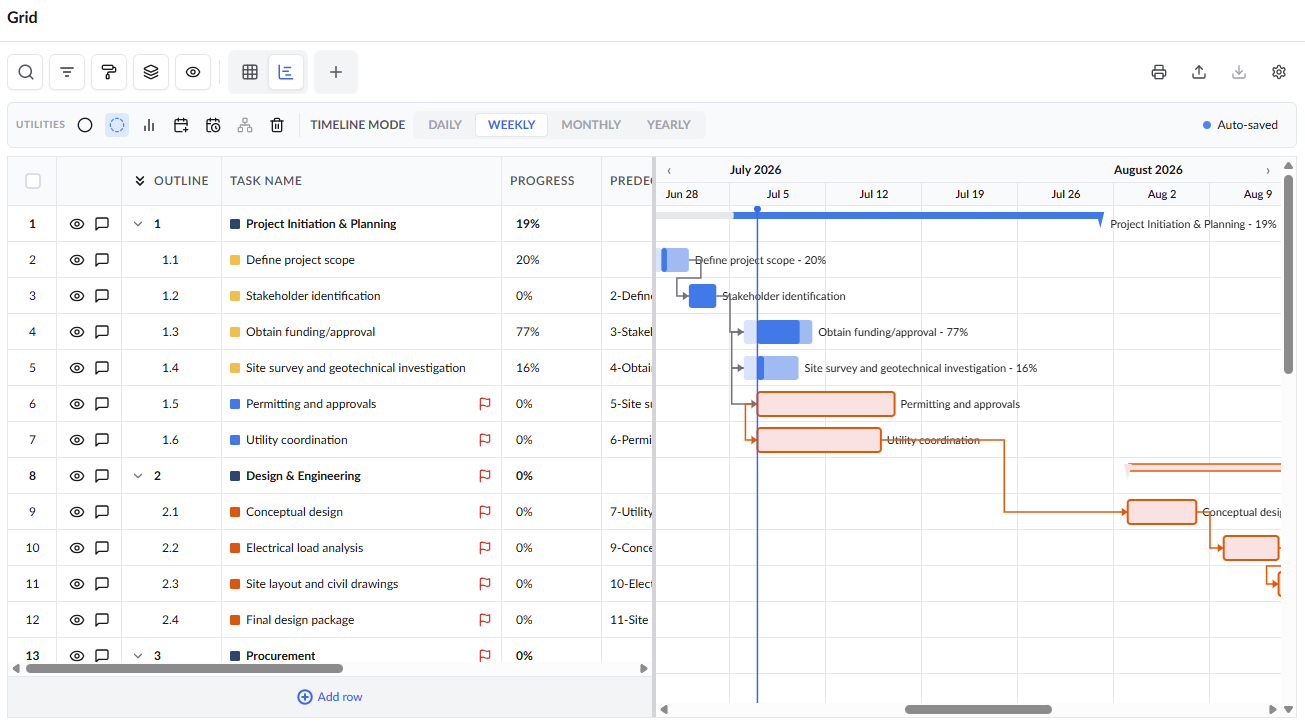
View Critical Tasks in the Grid View
- Click the
 icon at the top to return to the 'Grid' view
- Critical tasks are also indicated with the
 icon in the grid.
- Critical tasks are also indicated with the
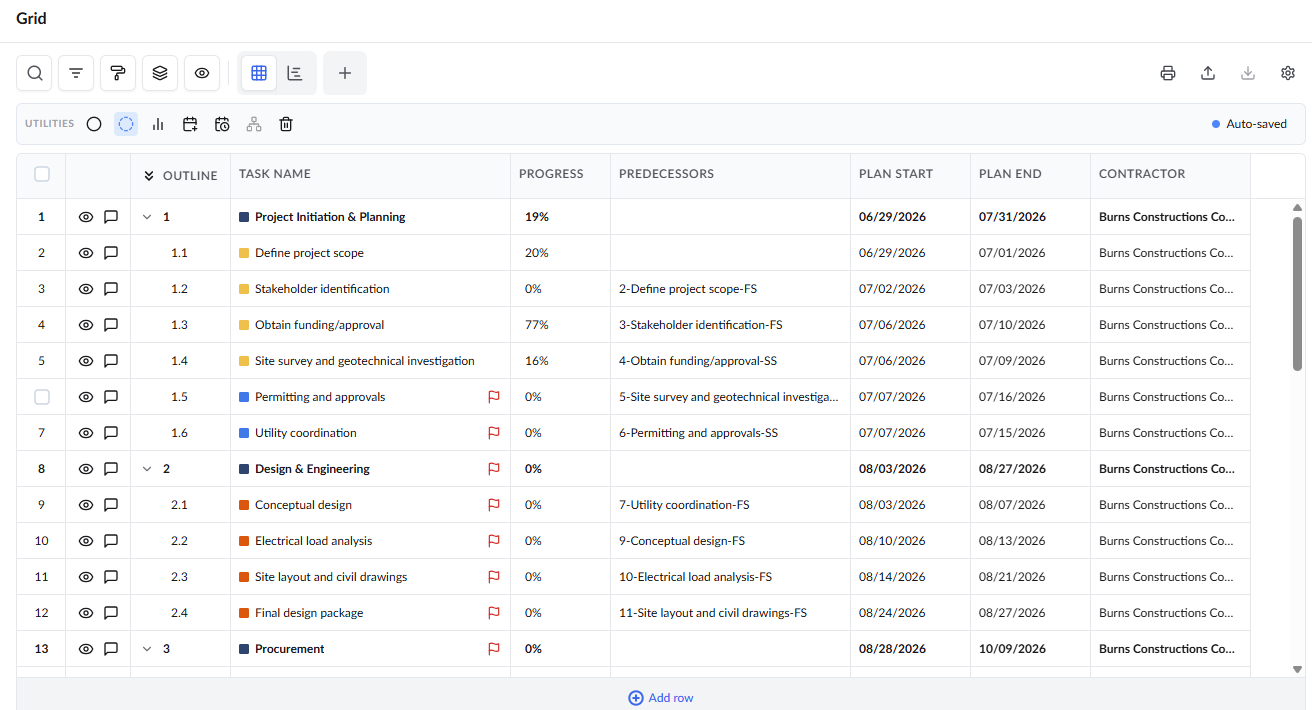
- Scheduling parameters including Early Start (ES), Early Finish (EF), Late Start (LS), Late Finish (LF), and Slack/Float are automatically calculated and displayed in the Grid View.
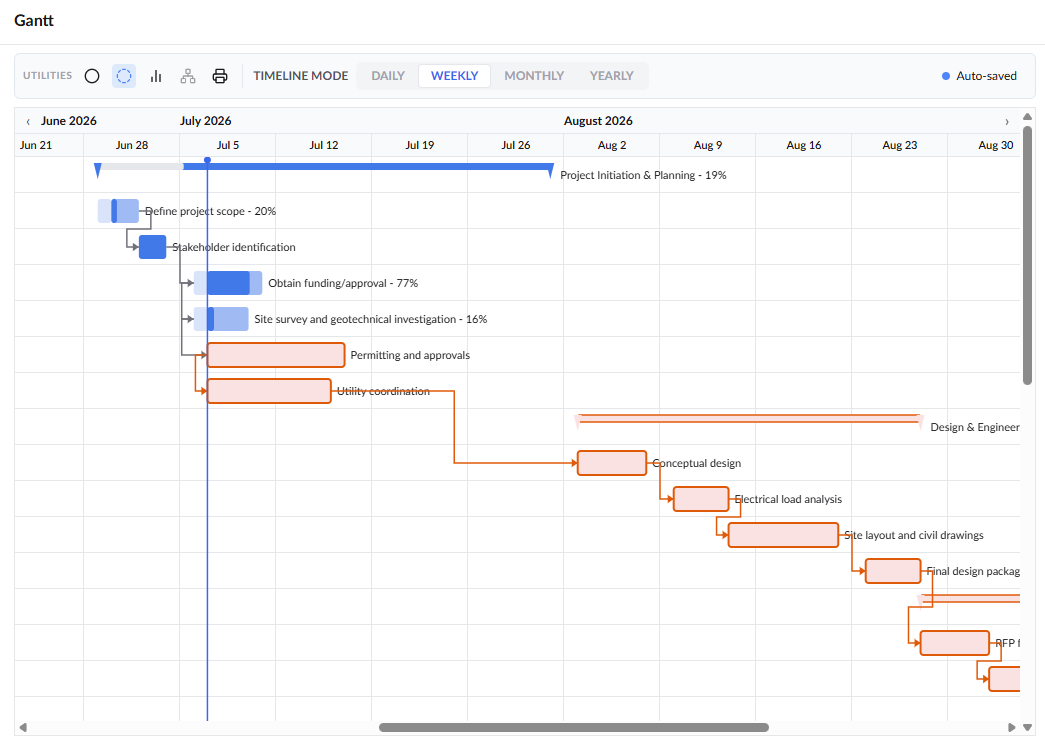
View Critical Tasks in the Gantt View
- Click 'Gantt' on the left-hand side menu
The calculated critical path is visually highlighted in red:
Was this article helpful?
That’s Great!
Thank you for your feedback
Sorry! We couldn't be helpful
Thank you for your feedback
Feedback sent
We appreciate your effort and will try to fix the article