When the General Contractor (GC) finalizes your scope of work and budget, they publish a Commitment Contract for your review. This document formalizes your agreement, outlining the overarching timeline, payment terms, and specific cost breakdowns assigned to your company.
Once the GC publishes the contract, you are automatically notified by the system to assess the details.
The Review & Acceptance Workflow
Upon reviewing the published contract, you have two options to proceed:
- Accept the contract: You agree to the timeline, payment terms, and financial assignments as presented.
- Request a revision: You require adjustments to the terms or cost breakdown. This sends the contract back to the GC, allowing them to revise the details and republish it for a new review.
Post-Acceptance Mechanics
Once you officially accept the assignment, the following actions secure the project's financials:
- Your Baseline is Established: The accepted contract amount serves as your definitive financial baseline.
- Contract Lines Lock: The specific line items assigned to you are officially locked within the GC's overarching master budget.
- GC Finalization: The GC will lock the commitment contract on their end to prevent any accidental changes or unauthorized edits.
You will get a notification once the GC establishes your commitment contract. You can access the contract directly via the automated notification, or by navigating through the main menu.
To view and access your Commitment Contract
- Click the main menu at the top-left
- Select 'Contract' under the Finance section.
- Select 'Commitment' on the left menu.
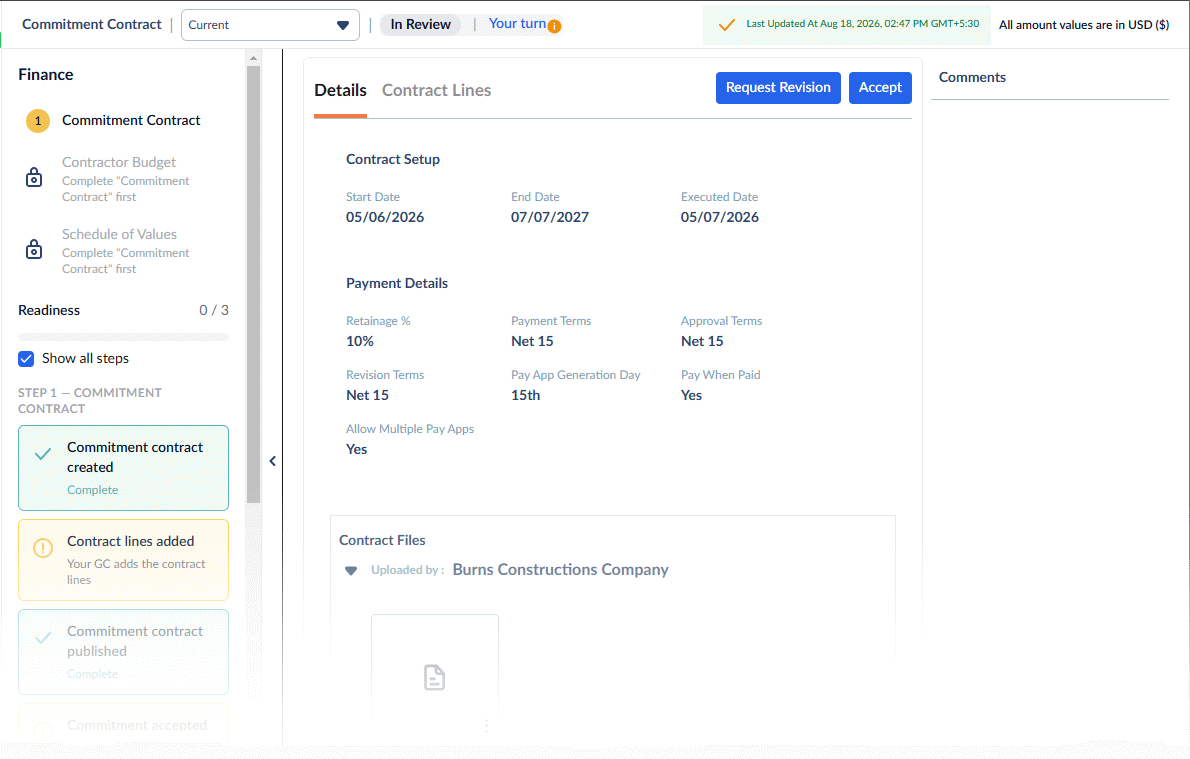
The Commitment Contract Screen
Top Summary Bar: Displays key contract metadata across the header:
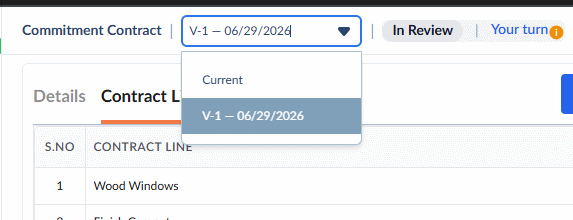
- Version Drop-down: Shows the active contract version (e.g., Current). Click to switch between and review previous revisions.
- Status & Turn: Displays the contract status (In Review) and the current Ball-in-Court indicator (Your turn).
- Audit Info: Shows the last updated timestamp and confirms all monetary values are in USD ($).
Setup Progress Panel (Left): A collapsible sidebar containing an auto-updating checklist that tracks readiness across setup milestones:
- Step 1 - Commitment Contract: Tracks key setup actions (Commitment contract created, Contract lines added, Commitment contract published, Commitment accepted).
- Step 2 - Contractor Budget: Tracks the creation and distribution of the subcontractor's budget line items to match the committed contract value.
- Step 3 - Schedule of Values (SOV): Guides the generation and locking of the detailed Schedule of Values (SOV) required for future progress billings and payment applications (Pay Apps).
Completed items display a green checkmark (Complete), while pending items show a yellow alert icon (!).
From this screen, you can:
Step 1 - Review Contract Details
Before responding, carefully review the terms and financial breakdowns configured by the GC.
Contract Setup & Payment Details
On the main contract screen, verify the overarching timeline and payment terms, including:
- Start Date & End Date: The official timeline for delivering your scope of work.
- Retainage: The percentage of each payment withheld until the project is satisfactorily completed.
- Payment Terms & Approval Terms: The agreed-upon timelines for invoice payments and Pay App approvals.
- Pay App Generation Day: The specific day of the month when you are eligible to officially submit your Pay App.
Contract Cost Breakdown
- Open the 'Contract Lines' tab.
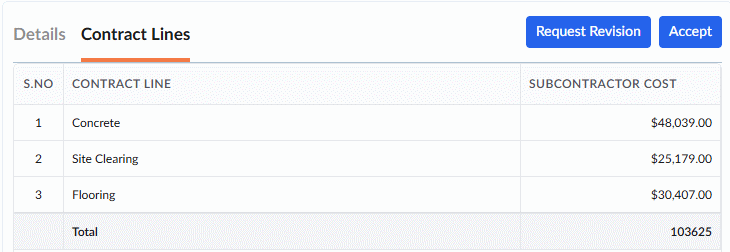
- Review the comprehensive list of budget line items and cost assignments the GC has committed to your company. Ensure the financial values accurately reflect your agreed-upon scope.
Step 2 - Respond to the Contract
After reviewing the details, you must submit your official response to move the workflow forward.
You have two options:
Request a Revision
If the terms or line items require adjustments, use the Comments pane on the right side of the screen to clearly log your requested changes and communicate with the GC.
- Enter your specific adjustment requests in the 'Comments' pane.
- Click the 'Request Revision' button at the top of the screen.
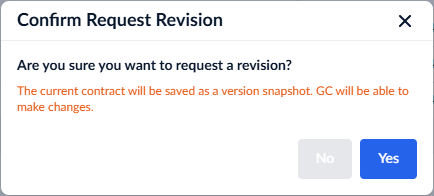
- Click 'Yes' to confirm.
This shifts the 'Ball in Court' back to the GC to amend and republish the contract.
Accept the Contract
If all details, terms, and cost assignments are accurate:
- Enter your acceptance note in the 'Comments' pane (optional).
- Click the 'Accept' button at the top of the screen.
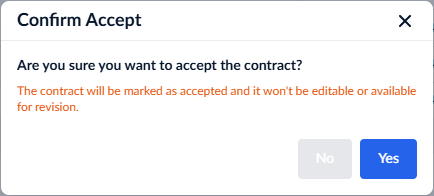
- Click 'Yes' to confirm your acceptance.
Next Steps
- Wait for the GC to Lock: Once you accept, the GC will officially lock the commitment contract to finalize the agreement.
- Build Your SOV: With your definitive financial baseline established and the contract locked, you can now construct your own detailed budget and submit your Schedule of Values (SOV) to the GC for approval.
Was this article helpful?
That’s Great!
Thank you for your feedback
Sorry! We couldn't be helpful
Thank you for your feedback
Feedback sent
We appreciate your effort and will try to fix the article