When navigating design discrepancies during plan reviews or active field execution, expedited clarification is essential to mitigate risk and prevent schedule delays. Generating a RFI directly from a plan markup allows project managers to bypass isolated written narratives.
This article outlines the process for generating a new RFI from a new plan markup. You can also link an already existing RFI to a markup element. See Link a Document Item to a Markup for more details.
To create an RFI from a plan drawing
- Click the main menu at the top-left
- Select 'Plan Sheets' under 'Documentation' from the main menu drop-down
- Click the thumbnail of the plan sheet you want to open
- Click on the markup element on the plan sheet. This can be a newly created markup or an existing one. See Add Markups on Plan Drawings to create a new markup.
Note: Any newly created markup must be saved to the plan sheet before it can be used to generate or link an RFI.
- Click the Link icon from the options menu that appears.
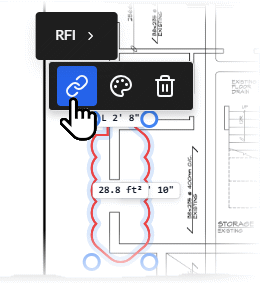
- Hover your mouse over RFI
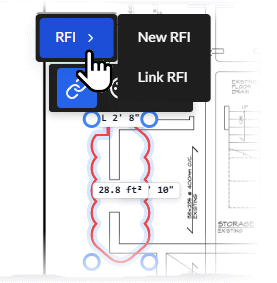
- Click 'New RFI'. The 'Create RFI' pane will appear on the right.
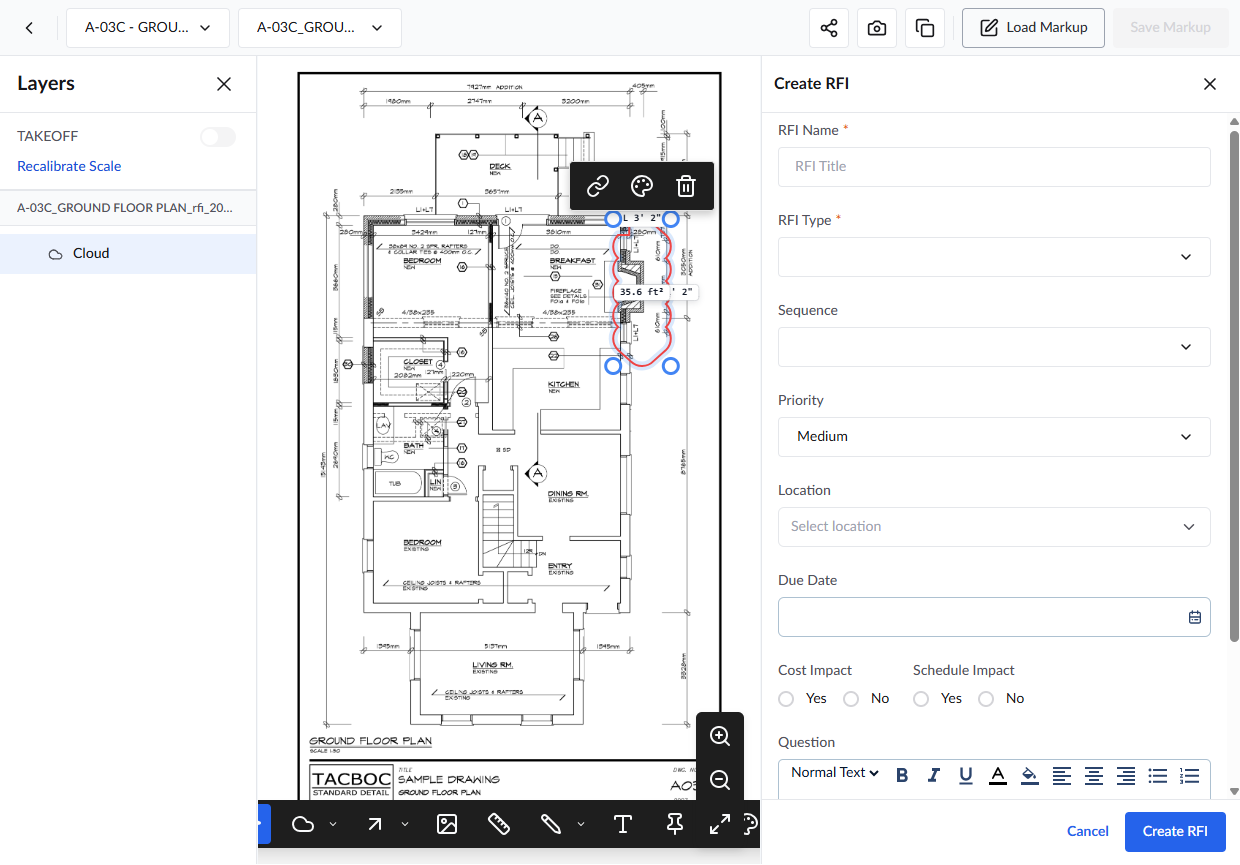
- RFI Name - Enter a label for the RFI, shortly describing its purpose. (Max. 150 characters)
- RFI Type- The purpose of the RFI. Whether the RFI is for clarification, confirmation, or missing details in the specs/plans, etc.
- Choose the type from the drop-down
- Sequence- Specify the category of the RFI. RFI categories are defined as a master list at your company level. The RFI will be sequence-numbered in a series, depending upon the category. This number lets you quickly identify, filter/review RFIs of a particular type.
- Priority - The criticality of the RFI. Choose 'High' for the RFIs to be answered quickly to avoid schedule and budget losses.
- Location- The location of the constructed structure for which clarification is needed. You can specify the spot from the list of locations defined for the project. As a prerequisite, the project should have been uploaded with a hierarchical list of locations. See Add Multi-Tiered Locations to a Projectfor more details.
- Click inside the location field
The 'Select Location' pop-up shows the hierarchically nested locations defined for the project: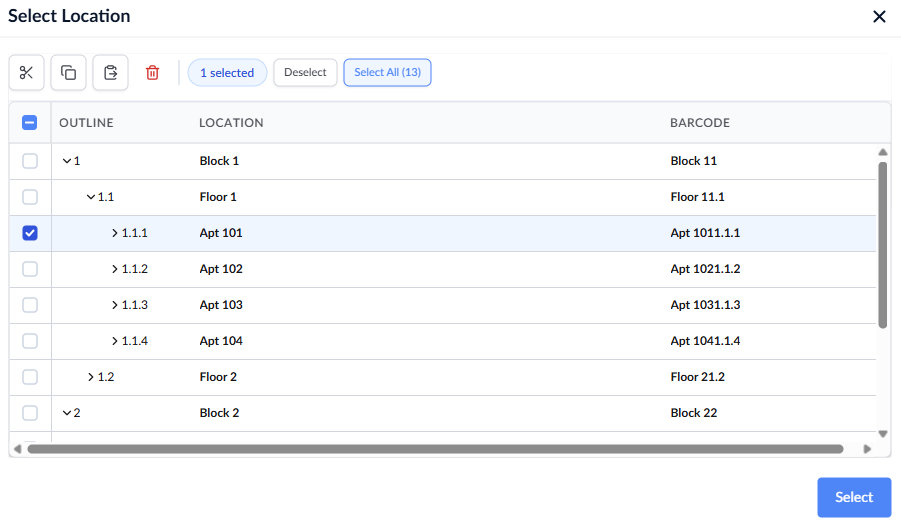
- Use the right arrows beside the parent-level items to expand them as required
- Select the location by clicking its serial number and clicking 'Select'
The location gets added to the 'Location' field.
- Due Date-Specify the date by which a response to the RFI is required.
- Cost Impact - Whether the RFI affects the budget or incurs extra expenses for the project. This decides whether the RFI may be escalated into a change order, which in turn helps to make budget amendments.
- Schedule Impact - Whether the subject of the RFI affects the schedule of the project.
Add Question
The next step is to add your queries. You can add your question with supporting attachments if necessary.
- Click inside the text box and type your question
- Use the tools at the top of the text box to format your text and add emojis, insert hyperlinks, tables, etc.
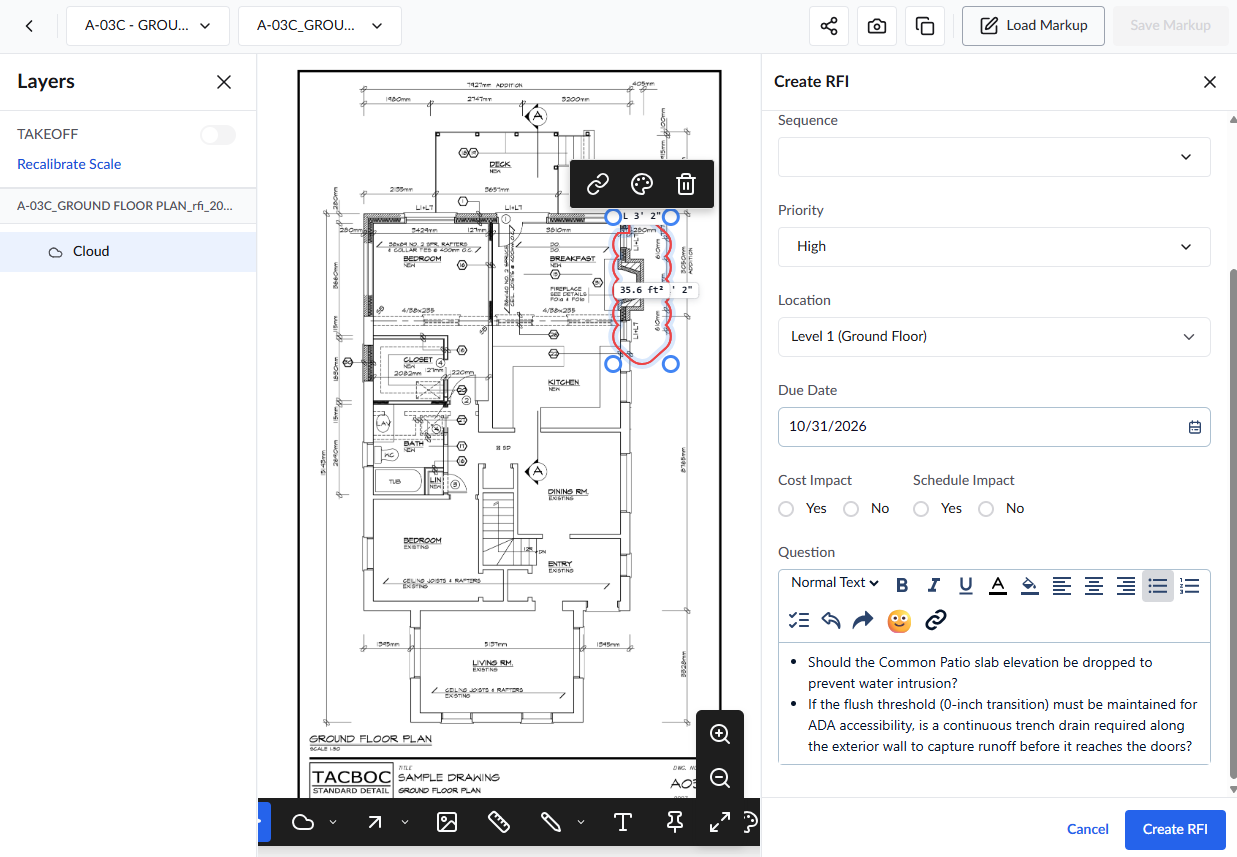
- Click the 'Create RFI' button.
The newly created RFI will remain in a 'DRAFT' state and editable within the Plans module until advanced to the next step.
Once the details are filled in, you can route the RFI to the GC Project Manager for further processing or set a workflow, if you are the GC.
Stand-alone Project: A self-contained scope of work in Linarc managed entirely by a single contractor without the involvement of other subcontractors. The contractor is solely responsible for all planning, execution, costs, and deliverables.
    • For standalone projects, workflows are managed through emails.
    • You can email the created RFI to external contractors, receive their answer, and manually add them before closing the document. See Email an RFI to External Stakeholders for more details.
- General Contractor: The GC should configure the workflow for the RFI and forward it to the next stage. The RFI gets added as a draft to the project and is visible to all project team members who have access to the RFI module from your company. Any member can add more questions and comments to the existing questions. Members designated as the RFI workflow managers of the project can set up a workflow. See 'Set a workflow for an RFI' for more details.
- Subcontractors: The RFI gets added as a draft to the project and is visible to all project team members who have access to the RFI module from your company. Any member can add more questions and comments to the existing questions. Members with appropriate permissions in the project can route the RFI to the next step
See the following pages for more details:
Was this article helpful?
That’s Great!
Thank you for your feedback
Sorry! We couldn't be helpful
Thank you for your feedback
Feedback sent
We appreciate your effort and will try to fix the article