Linarc allows you to import PDF plan sets directly from Google Drive into the Plans module. This cloud-to-cloud transfer lets you upload heavy blueprint packages and architectural drawing sets shared by external stakeholders without downloading massive files to your local device.
You can connect up to two Google Drive folders at a time per project, and swap or update them anytime to pull the latest drawing revisions.
Pre-requisite:
- Folder URL or ID: Have the link to your personal or shared stakeholder folder ready.
- Share Permissions: Grant access to drive-sync@linarc.io so Linarc can read and fetch your files.
Note:
This integration applies only to the Plans module and is independent of Google Drive integration with Linarc's cloud drive.
Connect Your Google Account
- Ensure you are in the 'Plan Sets' screen of the 'Plans' module. If not:
- Click the main menu at the top left
- Click 'Plan Sheet' under the 'Documentation' menu and select 'Plan Sets' on the left
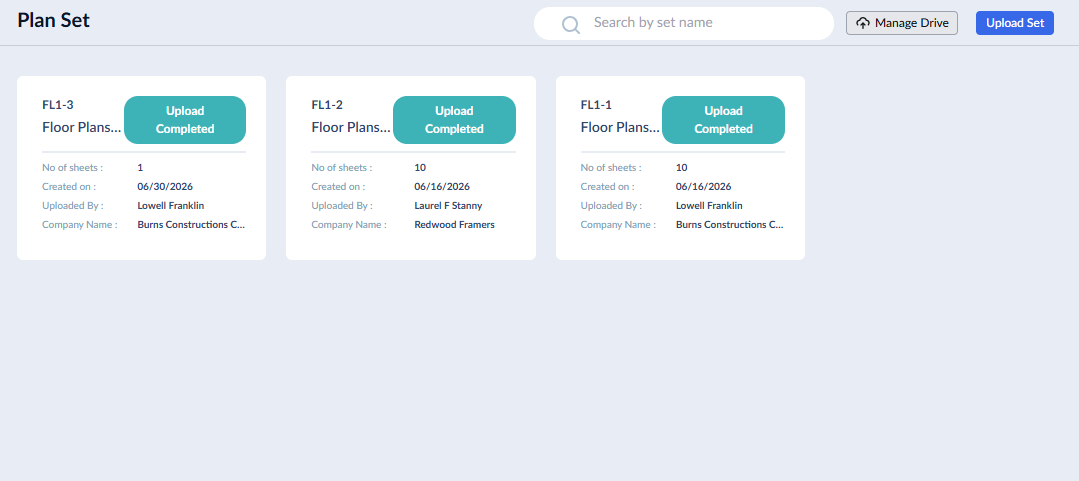
- Click 'Manage Drive' at the top
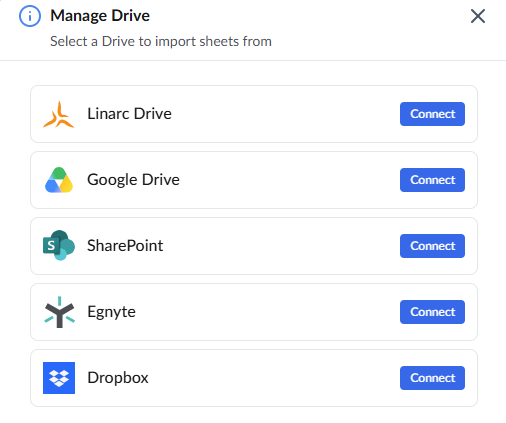
- Click the 'Connect' button to link your Google account.
- Ensure that your folder is shared with drive-sync@linarc.io. Click 'Got it' if done already.
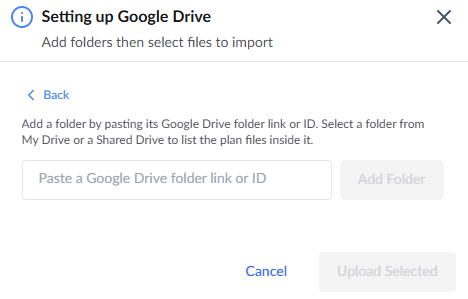
- Paste the link of your Google Drive folder or ID and click 'Add Folder'
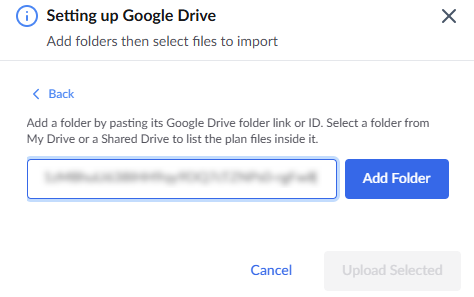
The system immediately displays all image files ( .png, .jpg, .jpeg) and documents (.pdf) stored within the specified Google Drive folder
Upload Plan Sheets from Google Drive
- Click 'Manage Drive' at the top and click open to view the contents of the connected folder
- Select the checkboxes next to the documents or individual sheets you need to import.
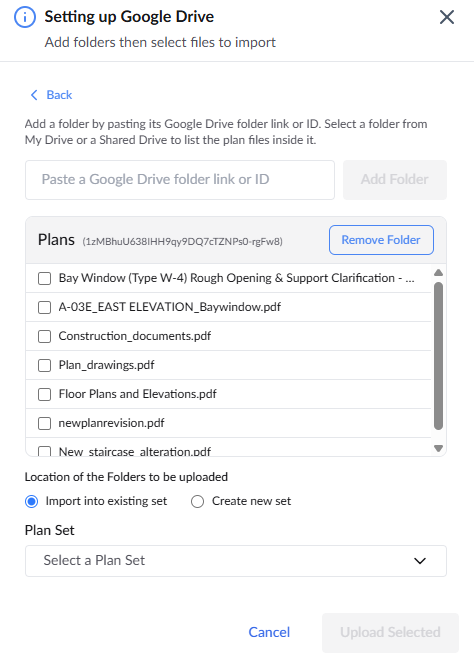
The 'Sheet Upload' has two options:
- New Set Upload - Create a set of plan sheets by uploading files containing single or multiple plan sheets.
- Upload from existing set - Create a new subset of plan sheets by uploading new plan sheets, revised plan sheets, sheet sets, etc., to existing plan sets.
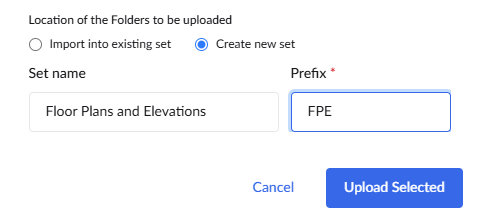
- Select 'Import into existing set' and choose the 'Plan Set' name from the drop down to add files to the current group
- Select 'Create new set' to establish a new document group
- Enter a name for the new set to upload, for example, Architectural, Floor Plans, Electrical, HVAC, etc.
- Enter a three-letter prefix to identify the set.
- Click the
 button
The system starts uploading the files. Once complete Linarc uses intelligent algorithms to parse the files into individual sheets, identify the values like the sheet number, sheet name, date, discipline, etc, and shows them as a list. You can review the details and publish to save the sheets to the project. See Review and Publish Plan Sheets for more details.
Was this article helpful?
That’s Great!
Thank you for your feedback
Sorry! We couldn't be helpful
Thank you for your feedback
Feedback sent
We appreciate your effort and will try to fix the article