The Contracts module enables you to establish your commitment contract by clearly defining terms and organizing your cost breakdown. This serves as the financial foundation for your project, allowing you to seamlessly transition from an agreed-upon scope of work to an actionable project budget.
- Define the overall amounts quoted for high-level categories of work as individual line items.
- Build your cost breakdown through manual data entry or by importing an Excel file directly into the system.
- Lock the finalized contract to secure your financial data and prevent unintended modifications.
- Generate a comprehensive project budget seamlessly using the data from your locked contract.
Note:
Linarc currently supports the contract, progressive billing and invoicing feature for subcontractors managing their projects independently as stand-alone contractors.
To set up your project contract
Ensure you are in the 'Commitment Contract' screen of the 'Finance' module. If not:
- Open the management console of the project.
- Click the app launcher icon
 in the top-right and select "Finance"
 - Click 'Contract' on top and select 'Commitment' on the left
The 'Commitment Contract' screen opens:

Step 1 - Enter the following contract terms:
- Start Date – The planned date when the contracted work or services will begin. This marks the commencement of the contractor’s obligations under the agreement.
- End Date – The planned completion date for the contracted work or services. This defines the contractual deadline for delivering all scope items.
- Executed Date – The date when the contract is formally signed and becomes legally binding between the contractor and the contracting party (typically the general contractor or project owner).
- Allow Budget Creation on Lock – When selected, the system automatically creates a 1:1 project budget from your contract line items upon locking the contract. You can then refine this baseline by breaking down individual contract amounts into more detailed budget items. See Set up Budget from Project Contract and Set Up a Budget Manually for more details. If not selected - Requires you to create or import your project budget manually.
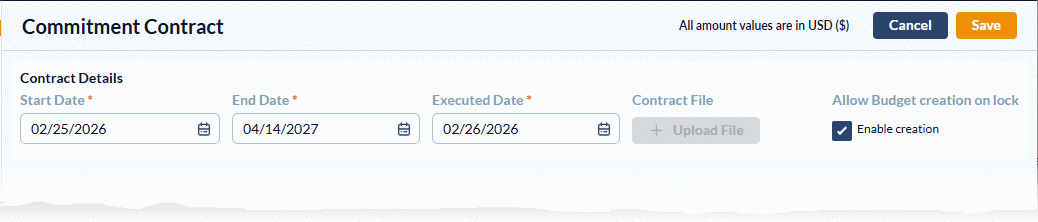
Once you have entered the details, click the 'Save' button in the top right corner to proceed.
Step 2 - Save the Contract File (Optional)
- Contract File – Click the 'Upload File' button to add the digital copy of the executed contract document.
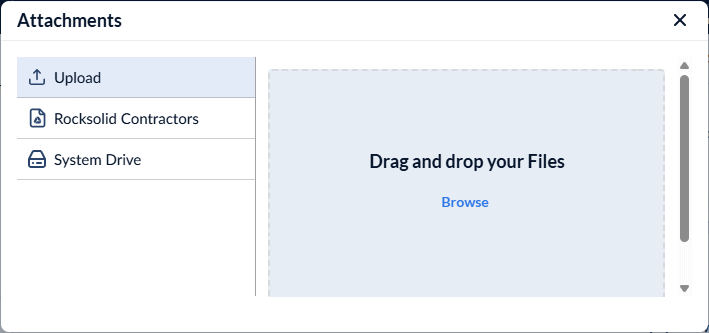
- To upload the contract PDF file from your local device, drag and drop the fileto the box or click 'Browse' and navigate to the file
- To upload the file from the project's file repository, select the drive from the left and navigate to the file
Step 3 - Setup the Contract Cost Breakdown
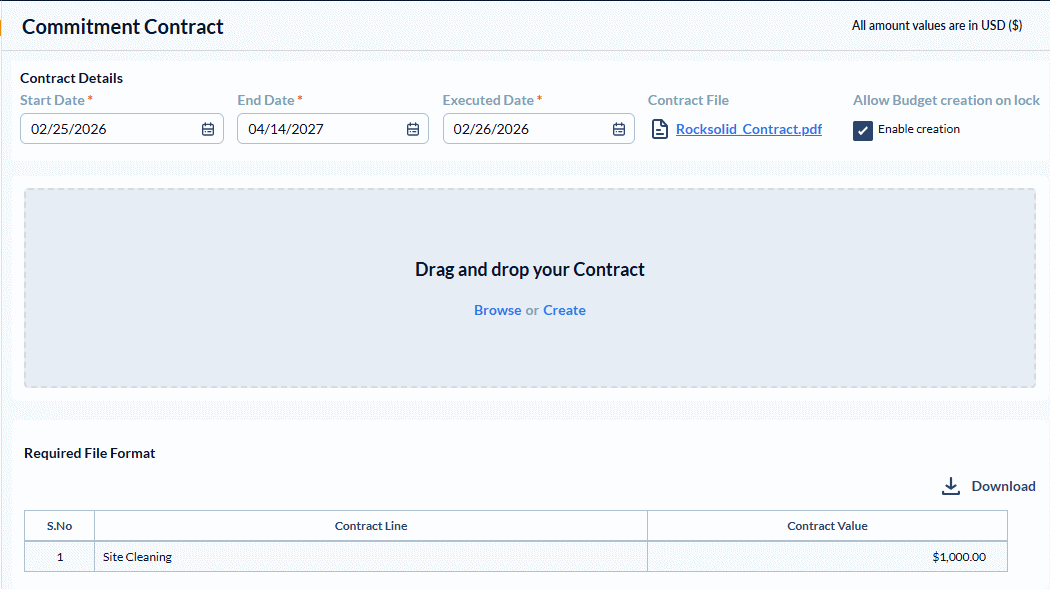
You can set up your contract in two ways:
Manually Create your Contract
- Click 'Create'
You can now add your contract line items one by one. Each line in the contract should contain one task entry. Enter the values for the tasks under the following column headers.
- Contract Line - A specific scope or cost item defined within the contract.`
- Contract Value - The total agreed monetary value for the contracted work. Enter the monetary values in the currency specified in your billing setup.
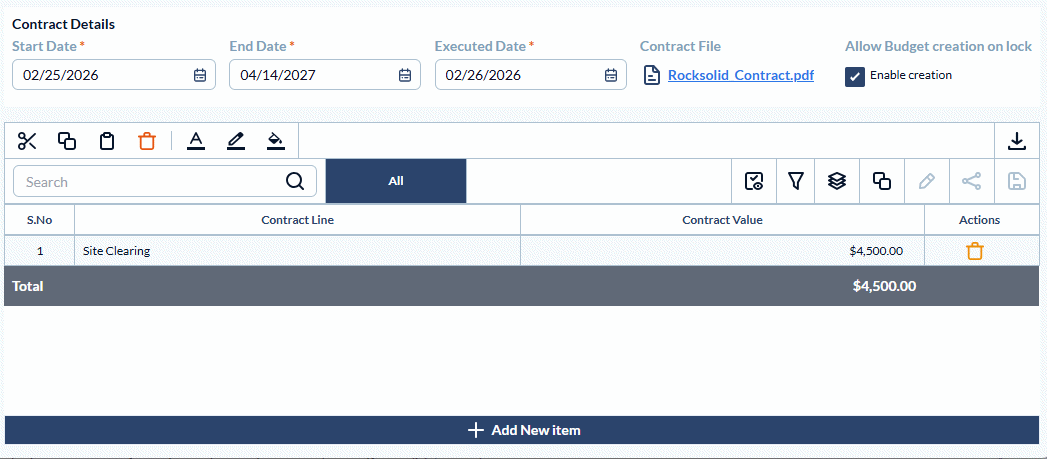
- Click '+Add Row' to add more line items
- Click the 'Delete' button to remove inadvertently added items
- Click 'Save' to save your draft.
- You can submit your contract after review and corrections/amendments, if any. Click here to know more.
Import your Contract Breakdown from an Excel file
Using an Excel file to upload your cost breakdown involves two steps:
- Step 1 - Create the contract
- Step 2 - Upload Contract
Create the contract
The template file with the required fields is available for download from the 'Contract' interface.
- Click 'Download' in the 'Commitment Contract' screen to obtain a blank Excel file containing the required field headers.
- Create your contract in the Excel file by entering the values for each line item.
Requirements of the contract file
- The Excel file should contain an exhaustive list of tasks for the completion of the work covered by the contract scope.
- Each line item in the file should contain one task entry.
Enter the values for the line items under the following column headers.
- Save the Excel file with an appropriate name.
Upload your Contract
- Click 'Browse' and navigate to the file you want to upload
- Alternatively, drag and drop the file into the box
The contract is added as a draft.

- If there are any errors, you can edit the details in the same interface
- Click 'Add Row' to add new line items to your contract
- Click the 'Save' at the top right to submit your contract
- Your entries are validated and saved
You can edit the estimate line items, add or remove line items whenever necessary, before locking it. See Add/remove/edit contract line items and Lock the contract for more details.
Search, filter, and sorting options
- Use the 'Search' box located at the top left to find a template using any value from the table as search criteria
- Right-click the column header and customize the display and order of the columns as you wish
- The options at the top right allow you to filter the entries, create nested groups of entries, and manage personalized and customized views of the table. Use the links below to learn more about these:
- Hover over a column header and click the
 icon to sort the rows in ascending or descending order of entries in that column
View Groups and Subtotals
- You can get totals and subtotals of numerical data for any selected set of records by grouping and applying nested grouping. Use the
 icon at the top right to organize the data by column headers
 - The system automatically aggregates relevant numerical values, giving a structured breakdown and a clear view of the grand total distribution. See Group and Organize Items in a List View for more details
Download as Excel Sheet
- Click the
 button at the top right to save a local copy of the list in Excel format for sharing and record-keeping. See Download List Views and Logs in Excel Format for more details
Was this article helpful?
That’s Great!
Thank you for your feedback
Sorry! We couldn't be helpful
Thank you for your feedback
Feedback sent
We appreciate your effort and will try to fix the article