The billing module closely monitors task progress updates and maintains a dynamic list of work items eligible for claims in the current month's cycle. By leveraging progress data and allocated cost amounts for each task, it computes critical financial parameters such as cost values tied to the month's progress and other key metrics, ensuring precision in project financial management.
- Progress Tracking: The 'My Progress' screen displays a list of items eligible for the current month's billing, including progress and cost details sourced from contract-based cost allocations.
- Monthly Submission: Contractors can select items from the 'My Progress' screen to create the payment application during the submission window configured in the contract.
- Review and Approval: Once pay app is submitted, the payor reviews the work performed thoroughly, either approving or revising as necessary. Approved Pay Apps enable the seamless generation of invoices for the billing period and submission of the same for payment.
To view the available work items for the current cycle
- Open the 'Progress Billing' > 'My Progress' screen. To do so:
- Click the app launcher icon
 in the top-right and select "Finance" from the drop-down
 - Click 'Progress Billing' at the top, then select 'My Progress' from the options on the left
- Click the app launcher icon
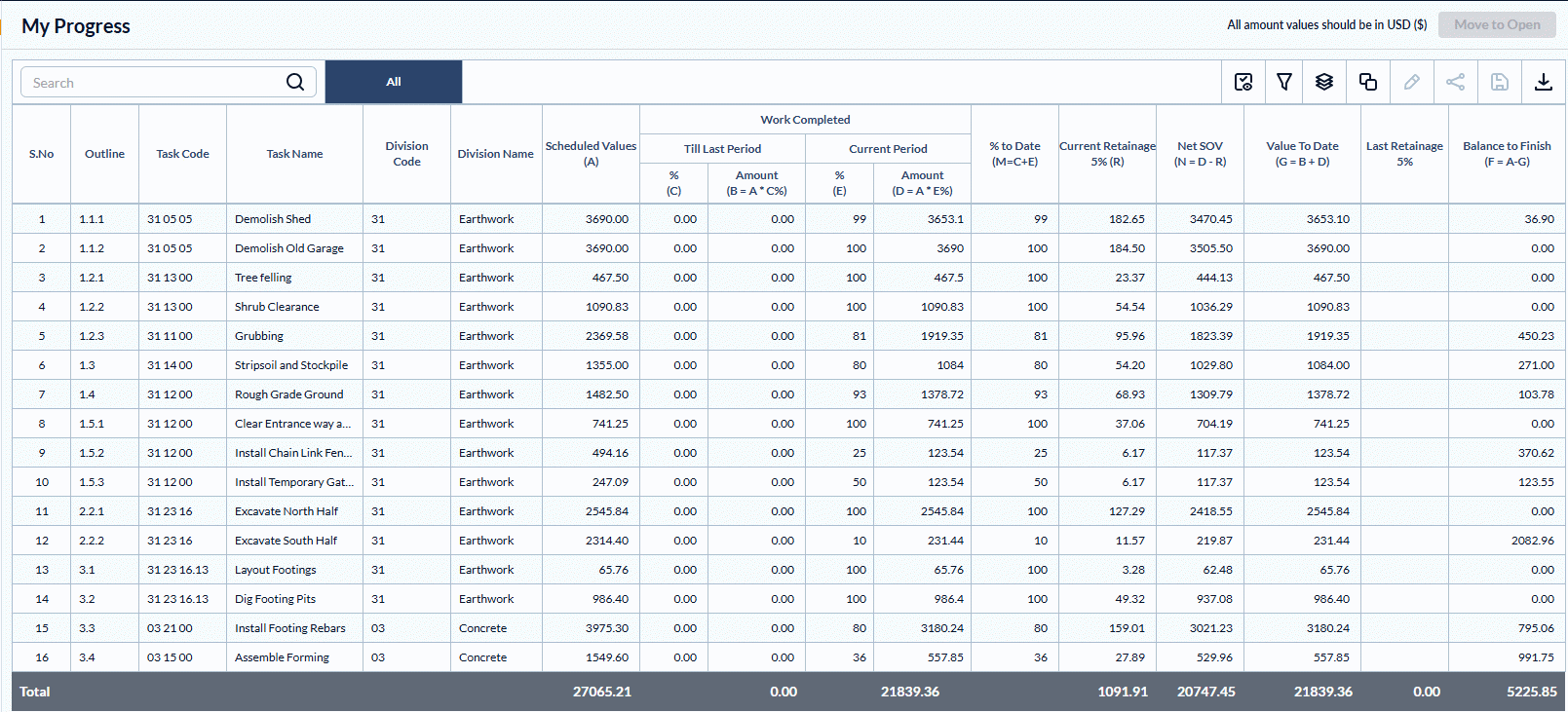
The table shows the list of work items that are eligible for invoicing with their details.
- Outline - The serial number assigned to each item within the WBS-based hierarchical schedule.
- Task Code - The cost code for the task item, derived from the contract line item, from which funds are allocated to the work item.
- Task Name - The label of the task item as in the contractor's schedule.
- Division Code - The cost code representing the discipline of work.
- Division Name - The discipline of the work
- Scheduled Values (A) - The total amount allocated to the work item, from the contract cost breakdown, that is, the planned overall cost of the item.
- Work Completed:
- Till Last Period % (C) - The cumulative completion percentage of the work billed till the previous month's invoice.
- Till Last Period Amount (B=AxC%) - The cumulative amount billed till the previous month's invoice.
- Current Period% (E) - The progress percentage of the task realized only in this month
- Current Period Amount (D = AxE%) - The gross billable amount incurred for the task in the current billing period.
- Till Last Period % (C) - The cumulative completion percentage of the work billed till the previous month's invoice.
- Progress % to Date (M = C+E) - The total completion percentage of the task till the current billing cycle
- Current Retainage (R) - The amount retained from the gross billable amount for the current billing period, as per the contract terms.
- Net Value (N = D-R) - The amount billable for the current billing period, excluding the retainage,
- Value To Date (G = B+D) - The cumulative gross total billable amount incurred for the task up to the current billing date, including retainage.
- Last Retainage - The total value of the amounts withheld from previous billing cycles.
- Balance to Finish (F=A-G) - The remaining amount in the task's total planned cost, after the current billing cycle.
Search and Filter Options
- Use the 'Search' box located at the top left to find an item using any value from the table as search criteria
- The options at the top right allow you to filter the entries, and manage personalized and customized views of the table. Use the links below to learn more about these:
Sortting Options
Hover over a column header and click the icon next to it to access sorting options.
- Select 'Ascending' to sort the rows based on the values in that column, arranged alphanumerically from lowest to highest
- Select 'Descending' to sort the rows based on the values in that column, arranged alphanumerically from highest to lowest
- Click 'Clear' to return to the default view
View Groups and Subtotals
- You can get totals and subtotals of numerical data for any selected set of records by grouping and applying nested grouping. Use the
 icon at the top right to organize the data by column headers
 - The system automatically aggregates relevant numerical values, giving a structured breakdown and a clear view of the grand total distribution. See Group and Organize Items in a List View for more details
Download as Excel Sheet
- Click the
 button at the top right to save a local copy of the list in Excel format for sharing and record-keeping. See Download List Views and Logs in Excel Format for more details
To move the work items for pay app generation
- Select the items for this month’s billing by clicking the checkboxes in the 'S.No' column
- Click 'Move to Open' at the top-right
Note: Work items under the same parent are auto-selected as a block for the current cycle and cannot be partially chosen.
The selected line items will be moved to 'Progress Billing' > 'Open' screen. You can reconcile the items, add more details and submit the same for pay app generation. You can also revert the items move to the Open screen by mistake.
See Create Payment Application for more guidance.
Was this article helpful?
That’s Great!
Thank you for your feedback
Sorry! We couldn't be helpful
Thank you for your feedback
Feedback sent
We appreciate your effort and will try to fix the article