Linarc simplifies your project financials by seamlessly connecting your budget directly to your project schedule. The Budget Allocation screen provides a comprehensive view of your project finances, allowing you to distribute funds from individual budget line items to specific scheduled tasks. This ensures complete financial accuracy from planning through execution.
With each allocation, your budget is instantly updated to reflect the remaining amount in the line item, giving you real-time visibility into the funds available for future use.
Use the links below to jump to the section you need help with:
- How It Works Across Contractor Types
- Key Benefits of Budget Allocation
- Prerequisites for Allocation
- Allocation Methods
- Access the budget allocation screen
- Allocate Amounts from a Budget Line to Selected Tasks
- Finalize Budget Allotments
How It Works Across Contractor Types
While the core mechanics of allocating funds remain the same, the scope of what you are allocating depends on your role in the project:
- General Contractors (GC): Can distribute funds from the master project budget to self-performed tasks and to the tasks assigned to various subcontractors. Please note: Funds designated for a specific contractor in the master budget can only be allocated to the tasks assigned to that exact contractor in the project schedule.
- Subcontractors (SC): Can distribute funds from their locked commitment budget to the tasks they are responsible for in their contractor schedule. Please note: Subcontractors can only allocate funds to published subtasks or activities that they have specifically created under the parent tasks assigned to them by the GC.
- Stand-alone Contractors: Can allocate their total project budget directly to their scheduled work items at any level within the Work Breakdown Structure (WBS) hierarchy.
Key Benefits of Budget Allocation
- Flexible Distribution: A single budget item can be progressively distributed across multiple tasks (at any level in your WBS hierarchy), provided all tasks are assigned to the same contractor in the master schedule.
- Automated Tracking: Tasks automatically inherit their designated cost codes, ensuring precise financial linking and effortless cost tracking.
- Streamlined Invoicing: This connected data automatically builds a highly accurate planned billing schedule and automates progress billing for your invoices.
- Real-time Updates: Any modifications made via internal budget adjustments or approved changes are automatically reflected in real time.
Prerequisites for Allocation
Before you can begin allocating funds to tasks, ensure the following steps are complete:
- Your respective budget (Master, Commitment, or Project) has been uploaded, distributed, and locked.
- The project schedule has been added, and the work items have been properly assigned.
- For Subcontractors: You have added subtasks and activities to the tasks assigned to you by the General Contractor at successive WBS levels as required, and these last-level tasks have been published.
Allocation Methods
The method for manually distributing funds from a budget line item to different tasks depends on how the budget line was initially set up:
- Planned Quantity Specified: If the budget line item includes a planned quantity of work (e.g., cubic yards of concrete), the allocation must be distributed based solely on the work quantity for each task, rather than the monetary amount. The system will calculate the dollar value automatically.
- No Planned Quantity: If no quantity is specified, you can allocate funds by inputting the actual dollar amount or by assigning a percentage of the total budget line to each task.
Note on Change Orders:
Budget amounts for work items added through approved change orders are automatically allocated from their respective work cost estimates. This eliminates the need for manual allocation, saving you time and ensuring accurate alignment with the total budget. You can view these automatic distributions at any time on the Allocation Log screen.
Access the Budget Allocation Screen
- Click the main menu icon at the top-left of your screen.
- Click 'Owner Contract' (GC) or 'Contract' (if you're and SC or a stand-alone contractor) under the 'Finance & Controls' section in the drop-down menu.
Tip: Press and hold the 'Cmd' (Mac) or 'Ctrl' (Windows) key on your keyboard while clicking to open the module in a new browser tab.
- Select 'Allocate' on the left
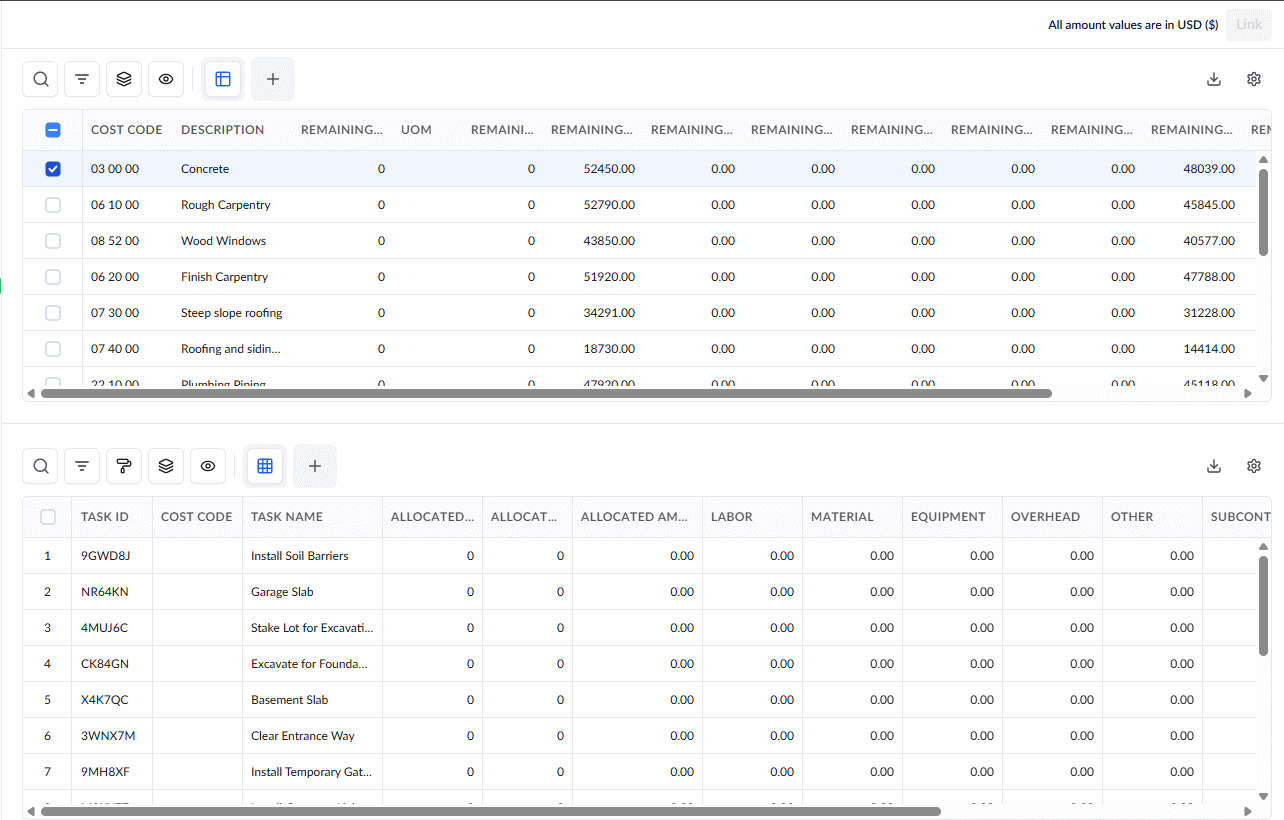
The allocation screen shows the budget and scheduled tasks in two panes, helping you streamline how you distribute project funds. As you assign money to your scheduled tasks, the system updates your remaining balances dynamically in real time, ensuring you always see the exact funds and quantities still available for distribution.
The panes are presented and function based on your role:
1. Upper Pane (Available Budget)
This section displays your project budget line items along with the funds currently available for distribution.
- General Contractors: You will see both self-performed budget items and items assigned to other contractors. Self-assigned items display a complete breakdown of the budget by cost type. Items assigned to subcontractors display the subcontractor's allotted amount, plus any applicable overhead and profit.
- Subcontractors: You will see only your self-assigned budget items. Because these are your direct financials, they include a full breakdown of your total budget across all applicable cost types.
The upper pane includes a comprehensive set of columns to help you track your available balances. By default, it displays all available columns, but you can easily customize this view to show only the data you need. (See Customize Columns and Layout in List Views for guidance).
Standard Columns:
- Cost Code: The standard company-level classification code for the portion of work, task, or deliverable.
- Description: The name or label of the budget item.
- Remaining QTY: The unallocated portion of the planned work quantity.
- Remaining Effort HRS: The unallocated portion of the estimated man-hours for the work included in this budget line.
- UOM (Unit of Measure): The metric used to quantify the work.
- Remaining Budget: The total unallocated funds still available for this line item.
- Remaining Overhead: The leftover overhead amount available for allocation.
- Remaining Profit: The unassigned profit margin associated with the line item.
Cost Type Breakdown Columns:
Depending on how the budget item is assigned, you will also see values in specific columns for remaining cost types:
- For Self-Assigned Items (GC & SC): Displays Remaining Labor, Remaining Material, Remaining Equipment, and Remaining Other.
- For Subcontractor-Assigned Items (GC Only): Displays Remaining Subcontractor (remaining funds designated strictly for the subcontractor).
Status Indicators:
Budget line items are color-coded to help you quickly identify their allocation status at a glance:
- White: Indicates that no funds have been allocated yet; the full budgeted amount is completely available for distribution.
- Yellow: Indicates a partial allocation; the budget item still has remaining funds available to distribute.
- Green: Indicates that the entire budgeted amount has been fully allocated to your scheduled tasks.
2. Lower Pane (Eligible Tasks)
When you select a specific budget line from the upper pane, this lower section automatically updates to display all scheduled tasks eligible to receive those funds.
- General Contractors: If you select a budget item assigned to a subcontractor in the upper pane, the lower pane will automatically filter to show only the specific schedule work items assigned to that exact subcontractor.
- Subcontractors: When you select one of your budget items, the lower pane simply lists all of your eligible scheduled work items ready for allocation.
Allocate Amounts from a Budget Line to Selected Tasks
- Click the serial number next to a budget line in the upper pane.
This action immediately updates the lower pane, populating it with all schedule work items eligible to receive those specific funds.
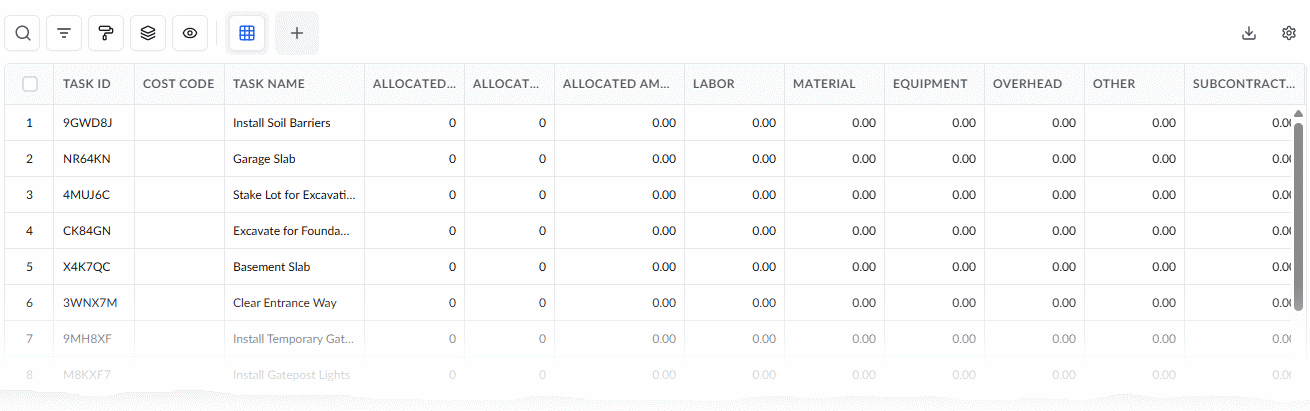
Amounts can be assigned in two ways:
- By Total Amount - Allocate funds by entering the monetary value directly. This method is especially useful for GCs allotting funds to work items assigned to subcontractors.
- By Work Quantity - Allocate funds to tasks by assigning a portion of the work quantity. This is useful for a unit-rate budget where payment depends on measured quantities. Applicable only to self-assigned tasks (e.g., subcontractors have all budget lines and tasks assigned to themselves).
Best Practise:
Avoid allocating the entire budget upfront. Keeping a reserve helps maintain financial control throughout the project lifecycle.
Distribute by Total Amount
- Double-click inside the Allocated Amount column in the row of the schedule item.
- Specify the total planned amount for the task.
The system deducts the corresponding amount from the linked budget line item, assigns proportional costs to applicable cost types, and updates the remaining balance automatically. You can still edit the auto-calculated amounts for each cost type. For example, when a GC allots an amount to a task outsourced to a subcontractor, the amount is added to the Subcontractor cost type and profit for the respective task.
- Repeat this process to allocate an amount from the same budget line item to other applicable tasks.
Distribute by Work Quantity
- Double-click inside the Allocate Quantity column in the row of the schedule item to which you want to assign funds.
- Enter the quantity of work associated with the task.
The system calculates and assigns proportional costs for each cost type, deducts them from the linked budget line item, and automatically updates the remaining balance for that line item. You can still edit the auto-calculated amounts for each cost type.
- Repeat this process to allocate quantities from the budget to other applicable tasks. Your changes are auto-saved.
Each value is deducted from its corresponding cost type in the estimate, with real-time updates to remaining balances.
Finalize Budget Allotments
Once you have finished distributing funds from a specific budget item, you can publish the allocations to finalize them.
- Select the task items in the lower pane by clicking their serial numbers.
(The following example shows the distribution of amounts to tasks allotted to a subcontractor by a GC. The process is similar for SCs.)
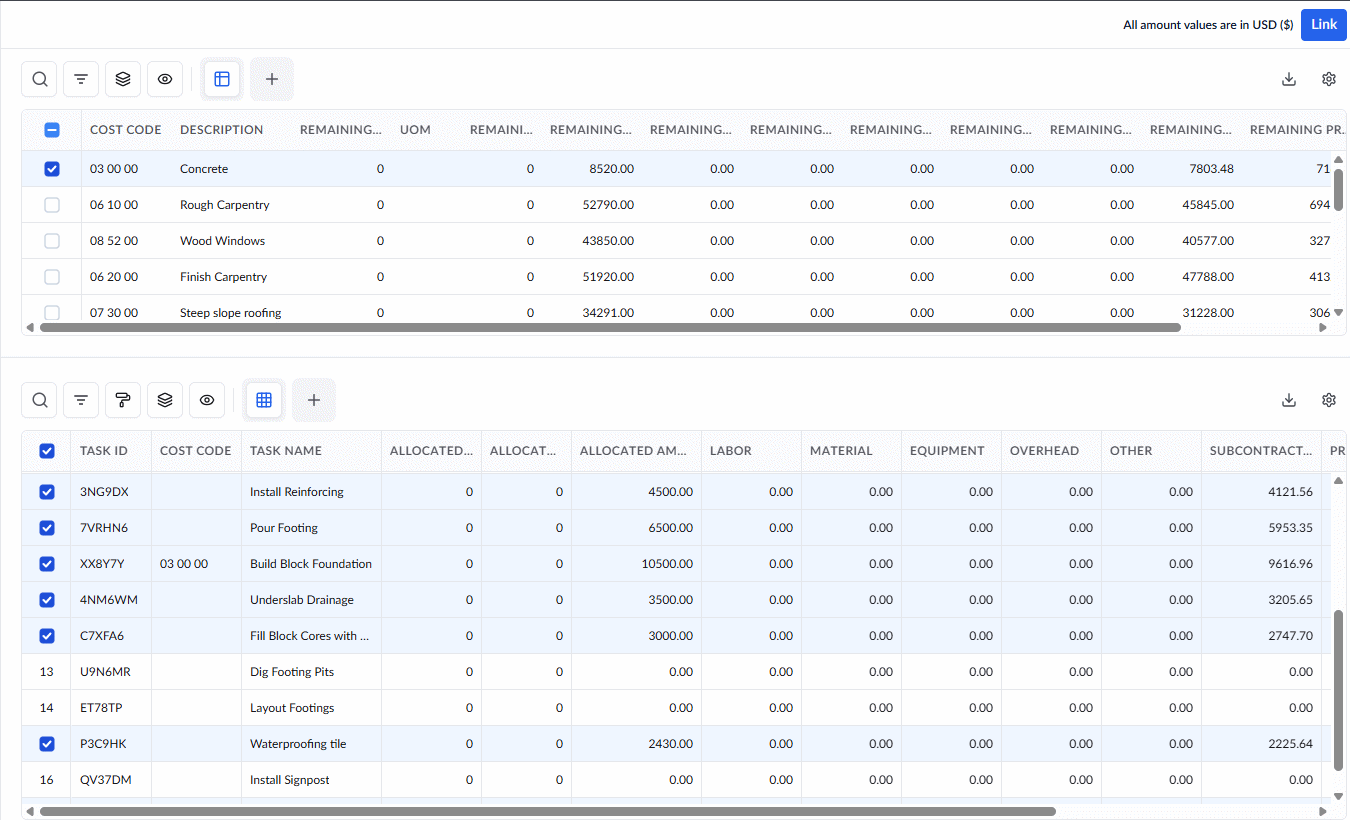
- Click the 'Link' button
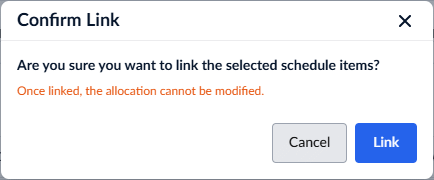
- Click 'Link' to confirm your action.
Your budget amounts are now allocated to the scheduled tasks, and you can adjust or reassign them anytime before recording task progress. See Revise Fund Allocations to Tasks for more details.
- Repeat the process to distribute amounts from the other budget lines to their respective scheduled tasks.
Search, Filter, and Sorting Options
- Click the magnifier icon and use the 'Search' box located at the top left to find an entry using any value from the table as search criteria
- Click any column header to sort the rows in ascending or descending order based on that column's data.
- Click the cog wheel icon at the top right to adjust the display density and customize the display and order of the columns
- The options at the top left allow you to filter the entries, create nested groups of entries, highlight cells and manage personalized and customized views of the table. Use the links below to learn more:
Was this article helpful?
That’s Great!
Thank you for your feedback
Sorry! We couldn't be helpful
Thank you for your feedback
Feedback sent
We appreciate your effort and will try to fix the article