The Cost Loaded Schedule screen provides a comprehensive view of how your project budget is distributed across scheduled tasks and deliverables. This unified view allows you to track financial allocations tied directly to your scheduled work items. You can view:
- Baseline Budget Allocations: View fund allocations for all baseline tasks and deliverables originating from your primary project budget.
- Change Order Work Items: Track new scheduled work items added as a result of approved Change Orders.
- Mapped Line Items: View individual line items from your Change Order cost estimates, which automatically map to the project schedule alongside your original scope.
To view the linked contract items and allotted funds
- Click the main menu icon at the top-left of your screen.
- Click 'Analytics under the 'Finance & Controls' section in the drop-down menu.
Tip: Hold Cmd (Mac) or Ctrl (Windows) while clicking to open Analytics in a new tab. If you are already within the 'Finance & Controls' module, simply click 'Analytics' in the top navigation bar.
- Alternatively, click 'Analytics' at the top, if you are alreday in someother module under 'Finance & Controls'
- Select 'CLS' on the left
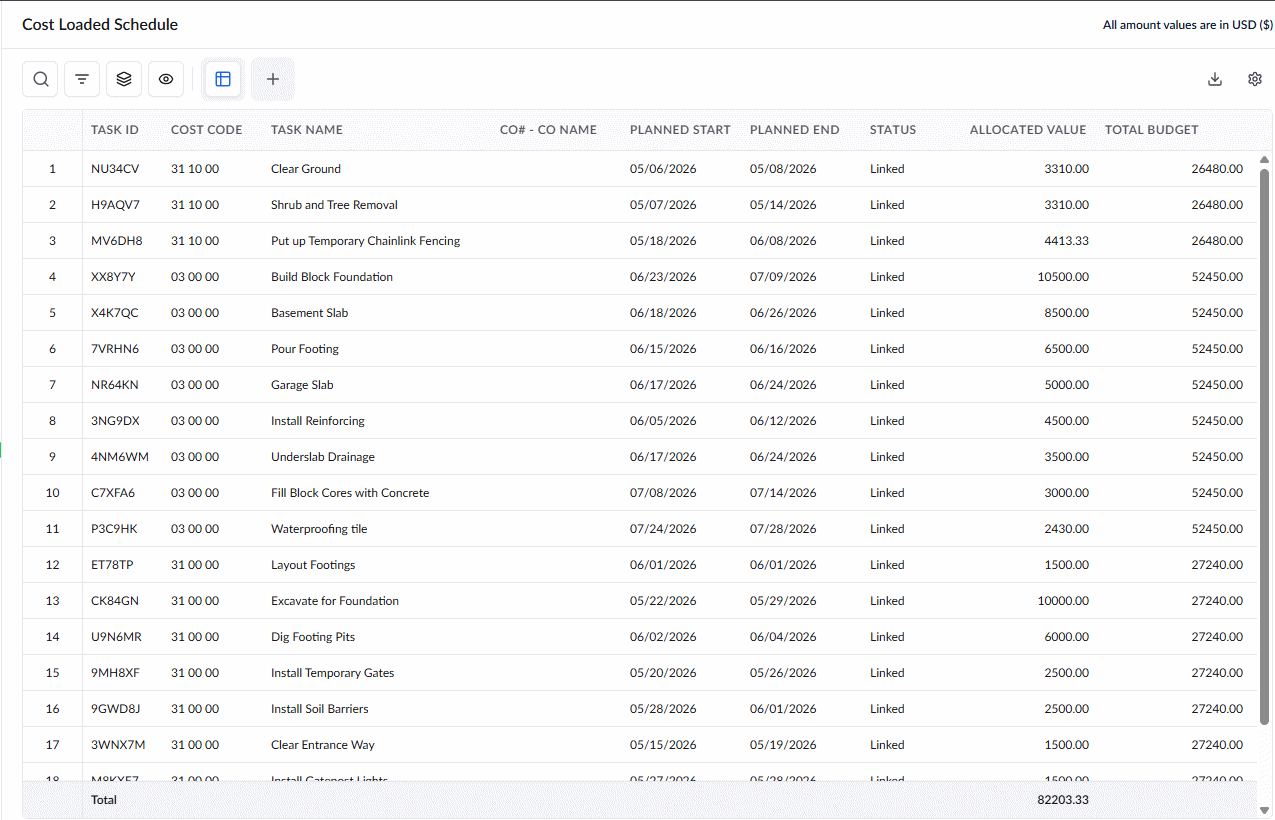
The the list shows all tasks and deliverables with their schedule details and the funds allocated with default columns. Right-click on the table header to add more columns or remove existing columns as required.
- Task ID - The system-generated alphanumeric code for the task used internally by various modules in the platform
- Cost Code - The unique identifier tracking specific project costs. It is generated automatically once a scheduled task's funding is fully finalized.
- Task Name -The descriptive label of the task, activity, or cost item as in the project schedule.
- CO Name - If the item is inherited form the change order, the column shows the serial number and title of the change order
- Planned Start - The scheduled commencement date of the task.
- Planned End - The completion date of the task.
- Status: Indicates whether the funding is finalized.
- Draft: The amount is reserved from a relevant budget item but has not yet been finalized.
- Linked: The funding amount is fully finalized.
Allocated Value - The actual amount assigned to the cost item
- Total Budget - The total amount of the budget line item, that funds this task.
Search, Filter, and Sorting Options
- Click the magnifier icon and use the 'Search' box located at the top left to find an entry using any value from the table as search criteria
- Click any column header to sort the rows in ascending or descending order based on that column's data.
- Click the cog wheel icon at the top right to adjust the display density and customize the display and order of the columns
- The options at the top left allow you to filter the entries, create nested groups of entries, highlight cells and manage personalized and customized views of the table. Use the links below to learn more:
Was this article helpful?
That’s Great!
Thank you for your feedback
Sorry! We couldn't be helpful
Thank you for your feedback
Feedback sent
We appreciate your effort and will try to fix the article