After entering and saving the committed cost amounts for all contract line items, you can lock the contract. Locking the contract establishes it as a fixed, binding reference point for project execution, financial tracking, and auditing. Once a contract is locked, it becomes read-only and cannot be altered directly. This ensures that the original contract values remain preserved for accountability and compliance.
When the contract is locked, you cannot:
Modify the original contract values
Add subline items
Delete any contract line items
To lock an estimate
- Ensure that you are in the 'Commitment Contract' screen. if it is not already opened:
- Click the app launcher
 and select 'Finance.'
 - Click 'Contract' at the top and 'Commitment' on the left
- Click the app launcher
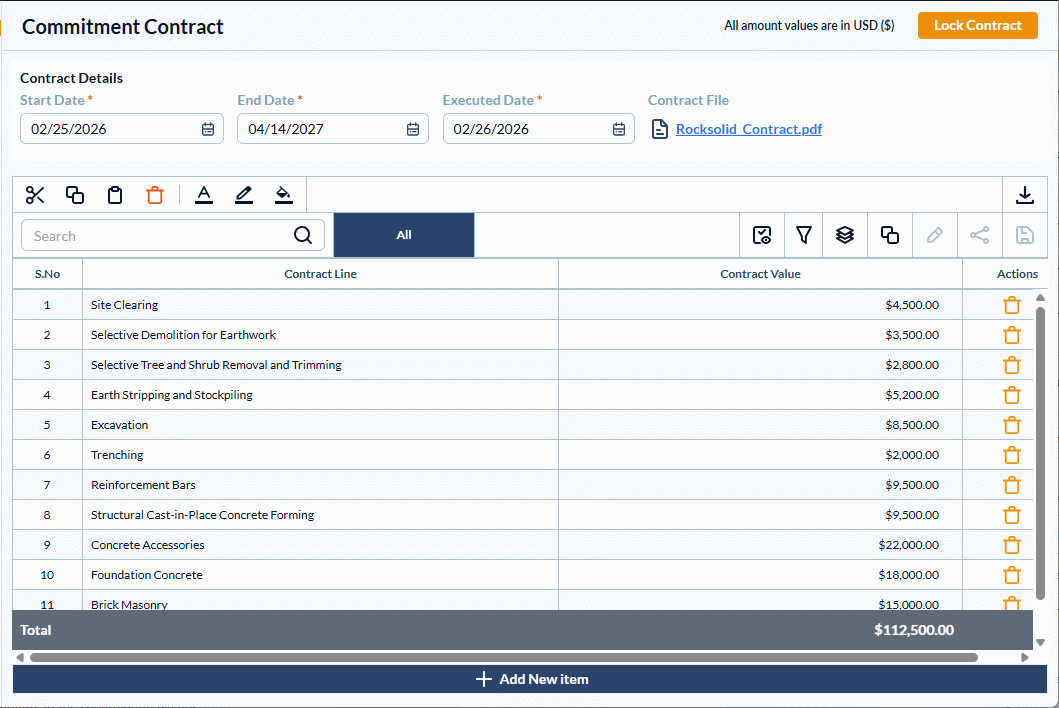
- Review the project contract and ensure it exhaustively covers all planned work
- Click 'Lock Contract' on the top right
Note: The 'Lock Contract' button appears only for saved contract. If you haven't done so, click 'Save' to save the contract configuration.
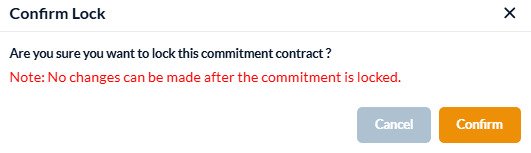
- Click 'Confirm' in the confirmation dialog.
Was this article helpful?
That’s Great!
Thank you for your feedback
Sorry! We couldn't be helpful
Thank you for your feedback
Feedback sent
We appreciate your effort and will try to fix the article